Other Articles
- IAM - Enable User MFA
- IAM - Enforce Key Rotation
- IAM - Enforce Active Key Limit
- IAM - Disable Unused User Credentials
- IAM - Enforce Group Permission
- IAM - Enforce Password Length
- IAM - Prohibit Password Reuse
- IAM - Check Root Access Keys Existence
- IAM - Enable Root MFA
- IAM - Establish Support Role
- IAM - Enable Key Rotation
- Purge Expired Certificates
- EC2 Volume – Enable EBS Volume Backup
- EC2 Volume – Enable EBS Encryption
- EFS – Enable EFS Storage Backup
- S3 Bucket – Enable S3 Bucket Versioning
- S3 Bucket – Enable S3 Bucket Encryption
- S3 Bucket – Block S3 Bucket Public Access
- RDS DB Instance – Encryption of Storage
- RDS DB Instance – Enable Deletion Protection
- RDS DB Instance – Enable Auto Minor Version Upgrade
- DynamoDB Table – Enable Table Encryption
- DynamoDB Table – Enable Table Point In Time Recovery
- DynamoDB Table – Enable Table Deletion Protection
- EKS Cluster – Enable Secrets Encryption
- OpenSearch Domain – Enable Encryption at Rest
- RDS DB Cluster – Retain Backups for 7 Days
- RDS DB Cluster – Encryption of Storage
- RDS DB Cluster – Enable Deletion Protection
- EC2 Instance – Monitor CPU Utilization
- ECS Service – Monitor CPU Utilization
- ECS Service – Monitor Memory Utilization
- RDS DB Instance – Monitor Free Storage Space
- RDS DB Instance – Monitor CPU Utilization
- SQS Queue – Monitor Message Age
- SQS Queue – Monitor Message Visibility
- DynamoDB Table – Monitor Table Read Capacity
- DynamoDB Table – Monitor Table Write Capacity
- DynamoDB Table – Monitor Table Latency
- Enable CloudTrail
- Encrypt CloudTrail Logs
- EC2 VPC – Ensure Flow Logs are Enabled
- EKS Cluster – Enable Control Plane Logging
- CloudWatch Log Group – Enable KMS Encryption
- CloudWatch Log Group – Configure Retention
- Load Balancer – Enable Access Logs
- RDS DB Instance – Block Public Access
- EC2 Security Group – Restrict Public SSH and RDP Access
- EC2 Security Group – Restrict Public Database Access
- EKS Cluster – Restrict Public Endpoint
- EC2 VPC – Restrict Default Security Group Traffic
- Load Balancer – Redirect HTTP Traffic to HTTPS
- Load Balancer – Use Strong TLS Policies
- OpenSearch Domain – Enable Node-to-Node Encryption
- OpenSearch Domain – Enforce HTTPS
- OpenSearch Domain – Restrict Public Access
- RDS DB Cluster – Block Public Access
- EC2 Instance – Enable Deletion Protection
- ECS Service – Enable Auto Scaling
- Load Balancer – Enable Deletion Protection
- Enable AWS Security Hub
- Enable GuardDuty
- CloudFront Distribution – Enforce HTTPS for Viewers
- CloudFront Distribution – Require TLS 1.2 for Viewers
- CloudFront Distribution – Associate a WAF Web ACL
- CloudFront Distribution – Protect S3 Origin Access
- KMS Key – Avoid Pending Deletion
- SNS Topic – Enable Encryption
SNS Topic – Restrict Topic Policy Access
Secure Configuration Checks > AWS
This check ensures that no Amazon SNS topic policy gives access to everyone. A wildcard principal is allowed only when a condition limits who can call the topic.
Check Details
- Resource: SNS Topic
- Check: Restrict SNS topic policy access (
NotPublic) - Risk: Anyone on the internet can publish to the topic or subscribe to its messages.
Example of a restricted policy
The first statement lets one AWS service publish from one source in your account. The second statement lets one other account subscribe.
{
  "Version": "2012-10-17",
  "Statement": [
    {
      "Sid": "AllowS3BucketToPublish",
      "Effect": "Allow",
      "Principal": {"Service": "s3.amazonaws.com"},
      "Action": "SNS:Publish",
      "Resource": "arn:aws:sns:<region>:<account-id>:<topic-name>",
      "Condition": {
        "ArnLike": {"aws:SourceArn": "arn:aws:s3:::<bucket-name>"},
        "StringEquals": {"aws:SourceAccount": "<account-id>"}
      }
    },
    {
      "Sid": "AllowPartnerAccountToSubscribe",
      "Effect": "Allow",
      "Principal": {"AWS": "arn:aws:iam::<partner-account-id>:root"},
      "Action": "SNS:Subscribe",
      "Resource": "arn:aws:sns:<region>:<account-id>:<topic-name>"
    }
  ]
}
Remediation via AWS Console
-
Log in to the AWS Management Console and open the Amazon SNS console.

- In the left navigation pane, click Topics and select the affected topic.
-
Open the Access policy tab. Look for an
Allowstatement with"Principal": "*"or"AWS": "*"and no limiting condition.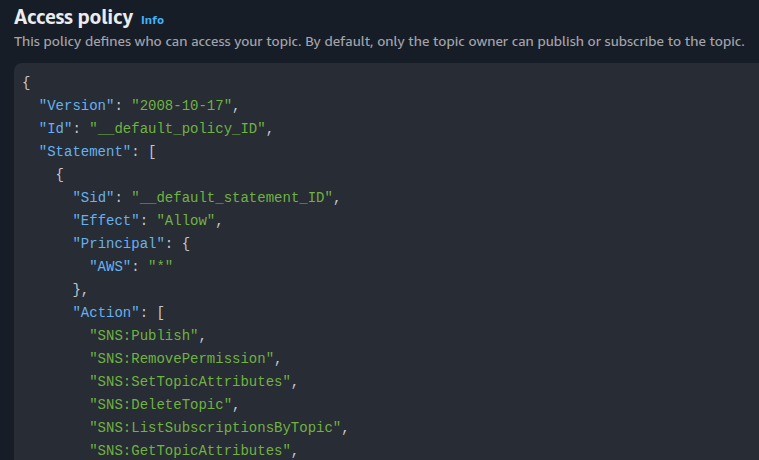
-
Click Edit. In the Access policy editor, replace the wildcard with a named principal, or add a limiting condition.
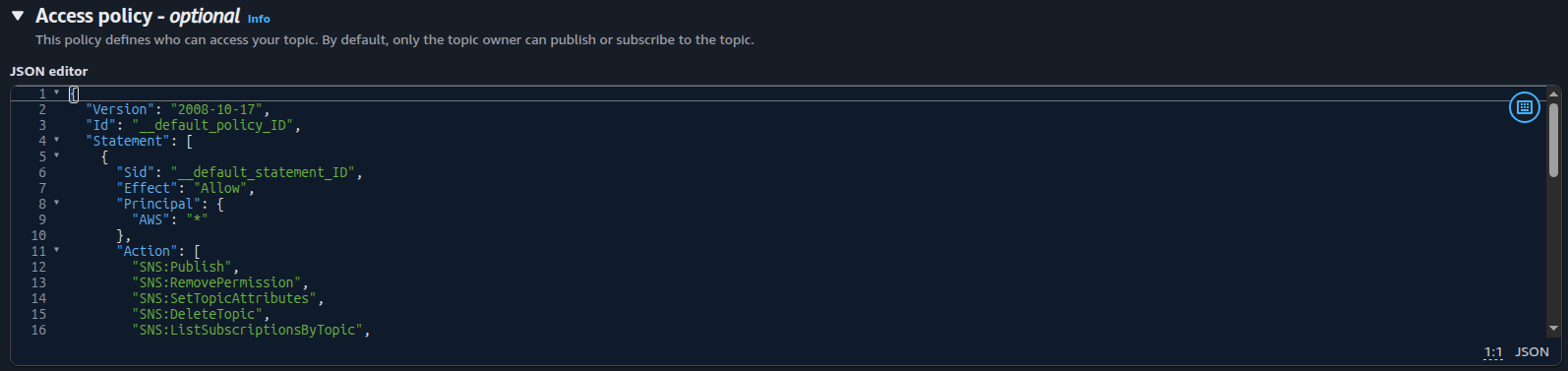
- Click Save changes.
- Repeat steps 2 to 5 for every affected topic.
Remediation via AWS CLI
-
Log in to the AWS Management Console and click the CloudShell icon (
>_) in the top-right corner.
-
List the topics that have a wildcard principal without a limiting condition:
for ARN in $(aws sns list-topics \
  --query 'Topics[].TopicArn' --output text); do
  aws sns get-topic-attributes \
    --topic-arn "$ARN" \
    --query 'Attributes.Policy' --output text | \
  jq -r --arg arn "$ARN" '
    [.Statement] | flatten | .[]
    | select(.Effect == "Allow")
    | select(
        (.Principal
          | if type == "string" then [.]
            else ([.AWS] | flatten) end)
        | index("*") != null)
    | select(
        [(.Condition // {}) | to_entries[].value | keys[] | ascii_downcase]
        | any(IN("aws:sourceowner", "aws:sourceaccount",
                 "aws:sourcearn", "aws:sourceip"))
        | not)
    | $arn'
done
The command flags the clear cases. Review each policy by hand, because it cannot judge the condition values.
-
Download the policy of an affected topic:
aws sns get-topic-attributes \
--topic-arn <topic-arn> \
--query 'Attributes.Policy' \
--output text | jq . > policy.json
Edit
policy.jsonwithnano policy.json. Replace the wildcard principal or add a condition. -
Apply the updated policy:
aws sns set-topic-attributes \
--topic-arn <topic-arn> \
--attribute-name Policy \
--attribute-value file://policy.json
-
Verify the policy on the topic:
aws sns get-topic-attributes \
--topic-arn <topic-arn> \
--query 'Attributes.Policy' \
--output text | jq .
Replace <topic-arn> with the topic ARN, for example arn:aws:sns:us-east-1:123456789012:my-topic.
Run the step 2 command again. It should no longer list the topic.
Updated on 04 November, 2026