Other Articles
- IAM - Enable User MFA
- IAM - Enforce Key Rotation
- IAM - Enforce Active Key Limit
- IAM - Disable Unused User Credentials
- IAM - Enforce Group Permission
- IAM - Enforce Password Length
- IAM - Prohibit Password Reuse
- IAM - Check Root Access Keys Existence
- IAM - Enable Root MFA
- IAM - Establish Support Role
- IAM - Enable Key Rotation
- Purge Expired Certificates
- EC2 Volume – Enable EBS Volume Backup
- EC2 Volume – Enable EBS Encryption
- EFS – Enable EFS Storage Backup
- S3 Bucket – Enable S3 Bucket Versioning
- S3 Bucket – Enable S3 Bucket Encryption
- S3 Bucket – Block S3 Bucket Public Access
- RDS DB Instance – Encryption of Storage
- RDS DB Instance – Enable Deletion Protection
- RDS DB Instance – Enable Auto Minor Version Upgrade
- DynamoDB Table – Enable Table Encryption
- DynamoDB Table – Enable Table Point In Time Recovery
- DynamoDB Table – Enable Table Deletion Protection
- EKS Cluster – Enable Secrets Encryption
- OpenSearch Domain – Enable Encryption at Rest
- RDS DB Cluster – Retain Backups for 7 Days
- RDS DB Cluster – Encryption of Storage
- RDS DB Cluster – Enable Deletion Protection
- EC2 Instance – Monitor CPU Utilization
- ECS Service – Monitor CPU Utilization
- ECS Service – Monitor Memory Utilization
- RDS DB Instance – Monitor Free Storage Space
- RDS DB Instance – Monitor CPU Utilization
- SQS Queue – Monitor Message Age
- SQS Queue – Monitor Message Visibility
- DynamoDB Table – Monitor Table Read Capacity
- DynamoDB Table – Monitor Table Write Capacity
- DynamoDB Table – Monitor Table Latency
- Enable CloudTrail
- Encrypt CloudTrail Logs
- EC2 VPC – Ensure Flow Logs are Enabled
- EKS Cluster – Enable Control Plane Logging
- CloudWatch Log Group – Enable KMS Encryption
- CloudWatch Log Group – Configure Retention
- Load Balancer – Enable Access Logs
- RDS DB Instance – Block Public Access
- EC2 Security Group – Restrict Public Database Access
- EKS Cluster – Restrict Public Endpoint
- EC2 VPC – Restrict Default Security Group Traffic
- Load Balancer – Redirect HTTP Traffic to HTTPS
- Load Balancer – Use Strong TLS Policies
- OpenSearch Domain – Enable Node-to-Node Encryption
- OpenSearch Domain – Enforce HTTPS
- OpenSearch Domain – Restrict Public Access
- RDS DB Cluster – Block Public Access
- EC2 Instance – Enable Deletion Protection
- ECS Service – Enable Auto Scaling
- Load Balancer – Enable Deletion Protection
- Enable AWS Security Hub
- Enable GuardDuty
- CloudFront Distribution – Enforce HTTPS for Viewers
- CloudFront Distribution – Require TLS 1.2 for Viewers
- CloudFront Distribution – Associate a WAF Web ACL
- CloudFront Distribution – Protect S3 Origin Access
- KMS Key – Avoid Pending Deletion
- SNS Topic – Enable Encryption
- SNS Topic – Restrict Topic Policy Access
EC2 Security Group – Restrict Public SSH and RDP Access
Secure Configuration Checks > AWS
This check ensures that no EC2 security group allows SSH (port 22) or RDP (port 3389) from the entire internet. Open remote access ports are scanned and attacked within minutes of being exposed.
Check Details
- Resource: EC2 Security Group
- Check: Restrict public SSH and RDP access (
NoUnrestrictedSshRdp) - Risk: Attackers can try brute force attacks and exploit remote access flaws
Remediation via AWS Console
-
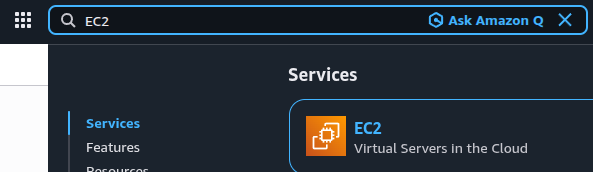
Log in to the AWS Management Console and open the Amazon EC2 console.
- In the left navigation pane, click Security Groups and select the affected security group.
-
Open the Inbound rules tab and click Edit inbound rules.

-
Find each rule for port 22 or 3389 with the source
0.0.0.0/0or::/0. Change the Source to a trusted IP range, or click Delete.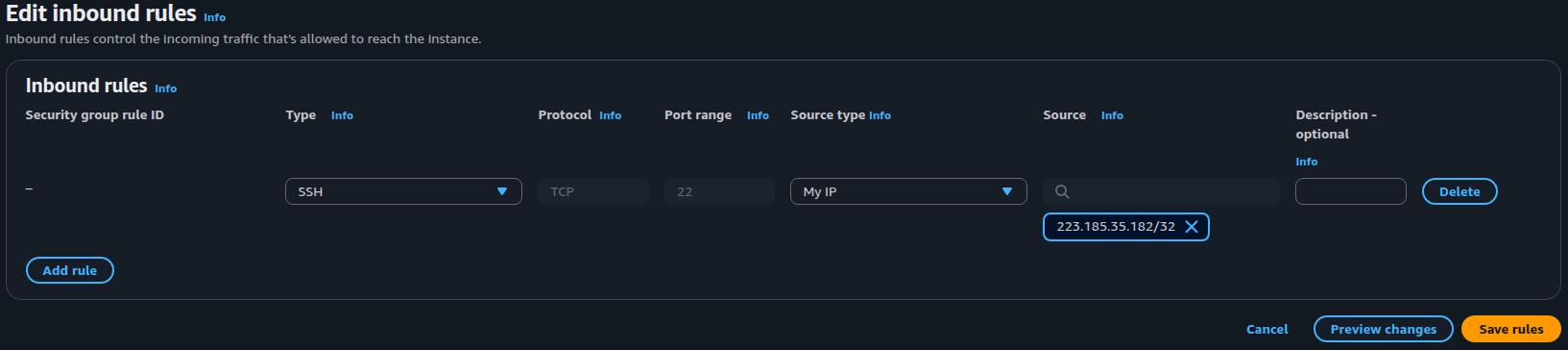
- Click Save rules.
- Repeat steps 2 to 5 for every affected security group.
Remediation via AWS CLI
-
Log in to the AWS Management Console and open CloudShell by clicking the CloudShell icon (
>_) in the top navigation bar.
-
List security group rules that expose SSH (port 22) or RDP (port 3389) to the internet:
aws ec2 describe-security-group-rules \
--query 'SecurityGroupRules[?IsEgress==`false` && (CidrIpv4==`"0.0.0.0/0"` || CidrIpv6==`"::/0"`) && (IpProtocol==`"-1"` || (FromPort<=`22` && ToPort>=`22`) || (FromPort<=`3389` && ToPort>=`3389`))].[GroupId,SecurityGroupRuleId,IpProtocol,FromPort,ToPort,CidrIpv4,CidrIpv6]' \
--output table
The output includes the security group ID, security group rule ID, protocol, port range, and public CIDR. The query checks the current region. Add
--region <region>to check another region. -
Allow SSH or RDP access only from a trusted IP address or CIDR range. Add the replacement rule before removing the existing public rule.
For SSH (port 22):
aws ec2 authorize-security-group-ingress \
--group-id <security-group-id> \
--protocol tcp \
--port 22 \
--cidr <trusted-cidr>
For RDP (port 3389):
aws ec2 authorize-security-group-ingress \
--group-id <security-group-id> \
--protocol tcp \
--port 3389 \
--cidr <trusted-cidr>
-
Remove the unrestricted inbound rules using their security group rule IDs obtained in step 2:
aws ec2 revoke-security-group-ingress \
--group-id <security-group-id> \
--security-group-rule-ids <security-group-rule-id>
Repeat the command for each exposed rule. This also handles rules that allow all traffic or use wider port ranges, provided you remove the complete offending rule.
Important: If a broad rule allows additional required traffic, recreate the necessary restricted rules before removing it.
-
Verify the remaining inbound rules:
aws ec2 describe-security-groups \
--group-ids <security-group-id> \
--query 'SecurityGroups[0].IpPermissions' \
--output json
Note: Replace <security-group-id> with the security group ID, for example sg-0123456789abcdef0. Replace <security-group-rule-id> with the rule ID, for example sgr-0123456789abcdef0. Replace <trusted-cidr> with your trusted IP range, for example 203.0.113.10/32.
If IPv6 access is required, configure an appropriate trusted IPv6 CIDR instead of leaving ::/0 unrestricted. Repeat the checks for every AWS region containing security groups.
Updated on 03 November, 2026