Other Articles
- IAM - Enable User MFA
- IAM - Enforce Key Rotation
- IAM - Enforce Active Key Limit
- IAM - Disable Unused User Credentials
- IAM - Enforce Group Permission
- IAM - Enforce Password Length
- IAM - Prohibit Password Reuse
- IAM - Check Root Access Keys Existence
- IAM - Enable Root MFA
- IAM - Establish Support Role
- IAM - Enable Key Rotation
- Purge Expired Certificates
- EC2 Volume – Enable EBS Volume Backup
- EC2 Volume – Enable EBS Encryption
- EFS – Enable EFS Storage Backup
- S3 Bucket – Enable S3 Bucket Versioning
- S3 Bucket – Enable S3 Bucket Encryption
- S3 Bucket – Block S3 Bucket Public Access
- RDS DB Instance – Encryption of Storage
- RDS DB Instance – Enable Deletion Protection
- RDS DB Instance – Enable Auto Minor Version Upgrade
- DynamoDB Table – Enable Table Encryption
- DynamoDB Table – Enable Table Point In Time Recovery
- DynamoDB Table – Enable Table Deletion Protection
- EKS Cluster – Enable Secrets Encryption
- OpenSearch Domain – Enable Encryption at Rest
- RDS DB Cluster – Retain Backups for 7 Days
- RDS DB Cluster – Encryption of Storage
- RDS DB Cluster – Enable Deletion Protection
- EC2 Instance – Monitor CPU Utilization
- ECS Service – Monitor CPU Utilization
- ECS Service – Monitor Memory Utilization
- RDS DB Instance – Monitor Free Storage Space
- RDS DB Instance – Monitor CPU Utilization
- SQS Queue – Monitor Message Age
- SQS Queue – Monitor Message Visibility
- DynamoDB Table – Monitor Table Read Capacity
- DynamoDB Table – Monitor Table Write Capacity
- DynamoDB Table – Monitor Table Latency
- Enable CloudTrail
- Encrypt CloudTrail Logs
- EC2 VPC – Ensure Flow Logs are Enabled
- EKS Cluster – Enable Control Plane Logging
- CloudWatch Log Group – Enable KMS Encryption
- CloudWatch Log Group – Configure Retention
- Load Balancer – Enable Access Logs
- RDS DB Instance – Block Public Access
- EC2 Security Group – Restrict Public SSH and RDP Access
- EC2 Security Group – Restrict Public Database Access
- EKS Cluster – Restrict Public Endpoint
- EC2 VPC – Restrict Default Security Group Traffic
- Load Balancer – Use Strong TLS Policies
- OpenSearch Domain – Enable Node-to-Node Encryption
- OpenSearch Domain – Enforce HTTPS
- OpenSearch Domain – Restrict Public Access
- RDS DB Cluster – Block Public Access
- EC2 Instance – Enable Deletion Protection
- ECS Service – Enable Auto Scaling
- Load Balancer – Enable Deletion Protection
- Enable AWS Security Hub
- Enable GuardDuty
- CloudFront Distribution – Enforce HTTPS for Viewers
- CloudFront Distribution – Require TLS 1.2 for Viewers
- CloudFront Distribution – Associate a WAF Web ACL
- CloudFront Distribution – Protect S3 Origin Access
- KMS Key – Avoid Pending Deletion
- SNS Topic – Enable Encryption
- SNS Topic – Restrict Topic Policy Access
Load Balancer – Redirect HTTP Traffic to HTTPS
Secure Configuration Checks > AWS
This check ensures that every HTTP listener of an Application Load Balancer redirects clients to HTTPS. Without a redirect, requests sent over HTTP are served in clear text. Anyone on the network path can read or change them.
Check Details
- Resource: Application Load Balancer listener
- Check: Redirect load balancer HTTP traffic to HTTPS (
HttpRedirectsToHttps) - Risk: Credentials, session cookies and personal data travel unencrypted and can be intercepted or modified
Remediation via AWS Console
-
Open the Amazon EC2 console and select Load Balancers under Load Balancing.

-
Select the affected Application Load Balancer and open Listeners and rules.
-
Verify that an HTTPS listener exists on port
443. If not, click Add listener, select HTTPS, configure the target group and ACM certificate, and add the listener.
-
Select the HTTP listener and open its Rules tab. Select the Default rule, then choose Actions > Edit rule.
-
Under Default action, choose Redirect to URL. Set the protocol to HTTPS, port to
443, and status code to HTTP 301.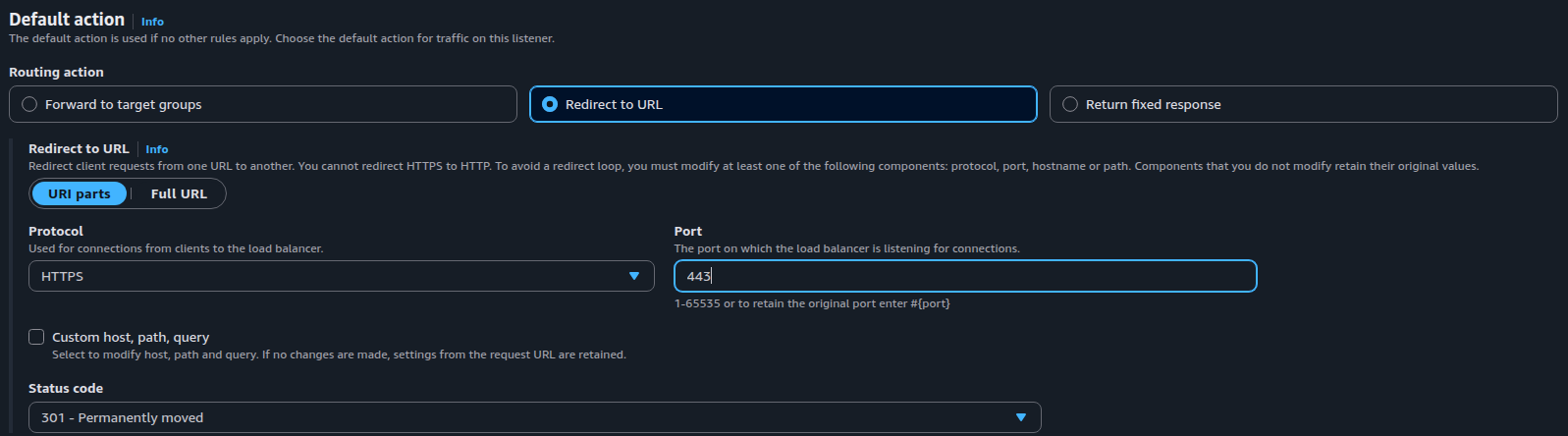
-
Choose Save changes. Repeat for every HTTP listener on each affected Application Load Balancer.
Note: Review non-default HTTP listener rules too. Any rule that forwards traffic instead of redirecting it may allow HTTP requests to bypass the redirect.
Remediation via AWS CLI
-
Log in to the AWS Management Console and click the CloudShell icon (
>_) in the top-right corner.
-
List the HTTP listeners that do not redirect to HTTPS:
for arn in $(aws elbv2 describe-load-balancers \
  --query 'LoadBalancers[?Type==`application`].LoadBalancerArn' \
  --output text); do
  aws elbv2 describe-listeners --load-balancer-arn "$arn" --output json | \
  jq -r '.Listeners[]
    | select(.Protocol == "HTTP")
    | select(any(.DefaultActions[]; .Type == "redirect" and .RedirectConfig.Protocol == "HTTPS") | not)
    | .ListenerArn'
done
The command covers one region. Add
--region <region>to eachawscommand to check another. -
If the load balancer has no HTTPS listener yet, create one. Skip this step if it already has one:
aws elbv2 create-listener \
--load-balancer-arn <load-balancer-arn> \
--protocol HTTPS \
--port 443 \
--certificates CertificateArn=<acm-certificate-arn> \
--ssl-policy ELBSecurityPolicy-TLS13-1-2-2021-06 \
--default-actions Type=forward,TargetGroupArn=<target-group-arn>
-
Change the default action of the HTTP listener to a redirect:
aws elbv2 modify-listener \
--listener-arn <http-listener-arn> \
--default-actions '[{"Type":"redirect","RedirectConfig":{"Protocol":"HTTPS","Port":"443","StatusCode":"HTTP_301"}}]'
The host, path and query of the request are kept by default, so
http://example.com/page?id=1becomeshttps://example.com/page?id=1. -
Verify the listener:
aws elbv2 describe-listeners \
--load-balancer-arn <load-balancer-arn> \
--query "Listeners[?Protocol=='HTTP'].[ListenerArn,DefaultActions[0].Type,DefaultActions[0].RedirectConfig.Protocol]" \
--output table
The action type must be
redirectand the protocolHTTPS. You can also test withcurl -I http://<load-balancer-dns-name>. The response must be301with aLocationheader that starts withhttps://.
Replace <load-balancer-arn> with the ARN of the Application Load Balancer.
Replace <http-listener-arn> with the ARN of the HTTP listener that step 2 lists.
Replace <acm-certificate-arn> and <target-group-arn> with your certificate and target group.
Repeat steps 4 and 5 for each listener that step 2 lists.
Updated on 04 November, 2026