Other Articles
- IAM - Enable User MFA
- IAM - Enforce Key Rotation
- IAM - Enforce Active Key Limit
- IAM - Enforce Group Permission
- IAM - Enforce Password Length
- IAM - Prohibit Password Reuse
- IAM - Check Root Access Keys Existence
- IAM - Enable Root MFA
- IAM - Establish Support Role
- IAM - Enable Key Rotation
- Purge Expired Certificates
- EC2 Volume – Enable EBS Volume Backup
- EC2 Volume – Enable EBS Encryption
- EFS – Enable EFS Storage Backup
- S3 Bucket – Enable S3 Bucket Versioning
- S3 Bucket – Enable S3 Bucket Encryption
- S3 Bucket – Block S3 Bucket Public Access
- RDS DB Instance – Encryption of Storage
- RDS DB Instance – Enable Deletion Protection
- RDS DB Instance – Enable Auto Minor Version Upgrade
- DynamoDB Table – Enable Table Encryption
- DynamoDB Table – Enable Table Point In Time Recovery
- DynamoDB Table – Enable Table Deletion Protection
- EC2 Instance – Monitor CPU Utilization
- ECS Service – Monitor CPU Utilization
- ECS Service – Monitor Memory Utilization
- RDS DB Instance – Monitor Free Storage Space
- RDS DB Instance – Monitor CPU Utilization
- SQS Queue – Monitor Message Age
- SQS Queue – Monitor Message Visibility
- DynamoDB Table – Monitor Table Read Capacity
- DynamoDB Table – Monitor Table Write Capacity
- DynamoDB Table – Monitor Table Latency
- Enable CloudTrail
- Encrypt CloudTrail Logs
- EC2 VPC – Ensure Flow Logs are Enabled
- RDS DB Instance – Block Public Access
- EC2 Instance – Enable Deletion Protection
- ECS Service – Enable Auto Scaling
- Enable AWS Security Hub
- Enable GuardDuty
IAM - Disable Unused User Credentials
Secure Configuration Checks > AWS
This check ensures that unused IAM user access keys are disabled. Access keys that are not used for 90 days or more increase the risk of unauthorized access if compromised.
Check Details
- Resource: Users
- Check: Disable unused user credentials
- Risk: Unused access keys may be exploited if exposed
Remediation via AWS Console
-
Sign in to the AWS Management Console and open the IAM console.

- Click Users and select the IAM user.
- Open the Security credentials tab.
-
In the Access keys section, review:
- Last used date
- Age of the access key
Access keys not used for 90 days or more should be disabled.
-
For each unused access key, click Actions and select Make inactive.
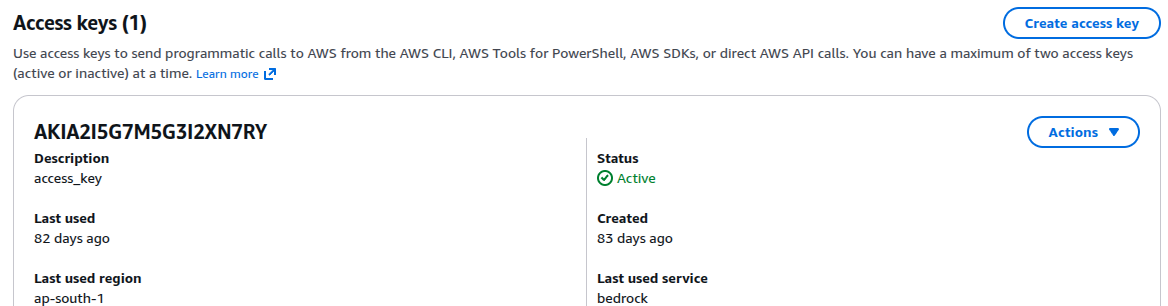
- Repeat steps 2–5 for all IAM users in the AWS account.
Remediation via AWS CLI
-
Log in to the AWS Management Console and click the CloudShell icon (
>_) in the top-right corner.
- Identify an access key that is less than 90 days old and should remain active.
-
Deactivate the old unused access key:
aws iam update-access-key \
--user-name <user-name> \
--access-key-id <old-access-key-id> \
--status Inactive
-
Verify the access key status:
aws iam list-access-keys --user-name <user-name>
- Repeat steps 2–4 for each IAM user in your AWS account.
Updated on 06 March, 2026