Other Articles
- IAM - Enable User MFA
- IAM - Enforce Key Rotation
- IAM - Enforce Active Key Limit
- IAM - Disable Unused User Credentials
- IAM - Enforce Group Permission
- IAM - Enforce Password Length
- IAM - Prohibit Password Reuse
- IAM - Check Root Access Keys Existence
- IAM - Enable Root MFA
- IAM - Establish Support Role
- IAM - Enable Key Rotation
- Purge Expired Certificates
- EC2 Volume – Enable EBS Volume Backup
- EC2 Volume – Enable EBS Encryption
- EFS – Enable EFS Storage Backup
- S3 Bucket – Enable S3 Bucket Versioning
- S3 Bucket – Enable S3 Bucket Encryption
- S3 Bucket – Block S3 Bucket Public Access
- RDS DB Instance – Encryption of Storage
- RDS DB Instance – Enable Deletion Protection
- RDS DB Instance – Enable Auto Minor Version Upgrade
- DynamoDB Table – Enable Table Encryption
- DynamoDB Table – Enable Table Point In Time Recovery
- DynamoDB Table – Enable Table Deletion Protection
- EC2 Instance – Monitor CPU Utilization
- ECS Service – Monitor Memory Utilization
- RDS DB Instance – Monitor Free Storage Space
- RDS DB Instance – Monitor CPU Utilization
- SQS Queue – Monitor Message Age
- SQS Queue – Monitor Message Visibility
- DynamoDB Table – Monitor Table Read Capacity
- DynamoDB Table – Monitor Table Write Capacity
- DynamoDB Table – Monitor Table Latency
- Enable CloudTrail
- Encrypt CloudTrail Logs
- EC2 VPC – Ensure Flow Logs are Enabled
- RDS DB Instance – Block Public Access
- EC2 Instance – Enable Deletion Protection
- ECS Service – Enable Auto Scaling
- Enable AWS Security Hub
- Enable GuardDuty
ECS Service – Monitor CPU Utilization
Secure Configuration Checks > AWS
This check ensures that ECS service CPU utilization is monitored to detect performance issues, optimize resource usage, and prevent service disruptions.
Check Details
- Resource: ECS Service
- Check: Monitor ECS service CPU utilization
- Risk: Performance issues due to unmonitored CPU usage
Remediation via AWS Console
-
Log in to the AWS Management Console and navigate to Amazon ECS.
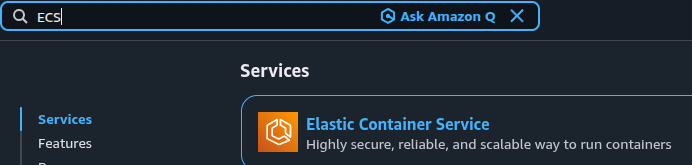
- Click Clusters, select the affected ECS cluster, then click Services and select the affected ECS service.
-
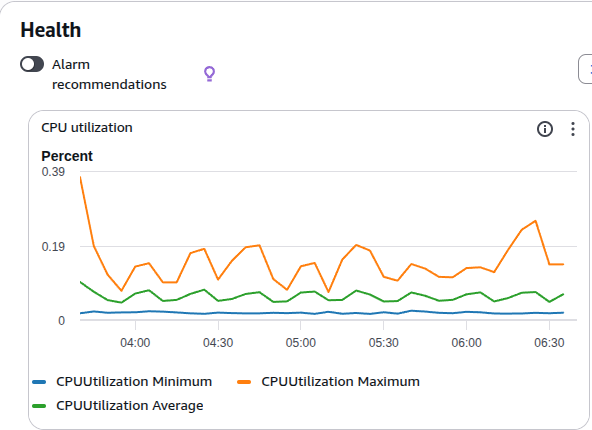
Open the Health and metrics tab and ensure that CPUUtilization metrics are being generated for the service.
-
If CPU utilization metrics are not available or not updating:
- Associate the service with a valid task definition
- Ensure the task definition specifies appropriate CPU values
- Save and deploy the updated service
Updated on 06 March, 2026