Other Articles
- IAM - Enable User MFA
- IAM - Enforce Key Rotation
- IAM - Enforce Active Key Limit
- IAM - Disable Unused User Credentials
- IAM - Enforce Group Permission
- IAM - Enforce Password Length
- IAM - Prohibit Password Reuse
- IAM - Check Root Access Keys Existence
- IAM - Enable Root MFA
- IAM - Establish Support Role
- IAM - Enable Key Rotation
- Purge Expired Certificates
- EC2 Volume – Enable EBS Volume Backup
- EC2 Volume – Enable EBS Encryption
- EFS – Enable EFS Storage Backup
- S3 Bucket – Enable S3 Bucket Versioning
- S3 Bucket – Block S3 Bucket Public Access
- RDS DB Instance – Encryption of Storage
- RDS DB Instance – Enable Deletion Protection
- RDS DB Instance – Enable Auto Minor Version Upgrade
- DynamoDB Table – Enable Table Encryption
- DynamoDB Table – Enable Table Point In Time Recovery
- DynamoDB Table – Enable Table Deletion Protection
- EC2 Instance – Monitor CPU Utilization
- ECS Service – Monitor CPU Utilization
- ECS Service – Monitor Memory Utilization
- RDS DB Instance – Monitor Free Storage Space
- RDS DB Instance – Monitor CPU Utilization
- SQS Queue – Monitor Message Age
- SQS Queue – Monitor Message Visibility
- DynamoDB Table – Monitor Table Read Capacity
- DynamoDB Table – Monitor Table Write Capacity
- DynamoDB Table – Monitor Table Latency
- Enable CloudTrail
- Encrypt CloudTrail Logs
- EC2 VPC – Ensure Flow Logs are Enabled
- RDS DB Instance – Block Public Access
- EC2 Instance – Enable Deletion Protection
- ECS Service – Enable Auto Scaling
- Enable AWS Security Hub
- Enable GuardDuty
S3 Bucket – Enable S3 Bucket Encryption
Secure Configuration Checks > AWS
This check ensures that server-side encryption is enabled for Amazon S3 buckets. Encryption protects data at rest by automatically encrypting objects stored in the bucket using AWS-managed or customer-managed keys.
Check Details
- Resource: S3 Bucket
- Check: Enable S3 bucket encryption
- Risk: Unencrypted data may be exposed if accessed without authorization
Remediation via AWS Console
-
Log in to the AWS Management Console and open the Amazon S3 console.
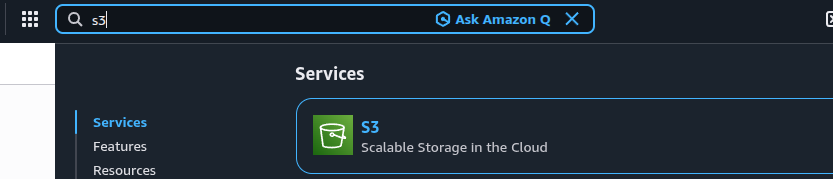
- Select the S3 bucket where encryption is not enabled.
-
Open the Properties tab.
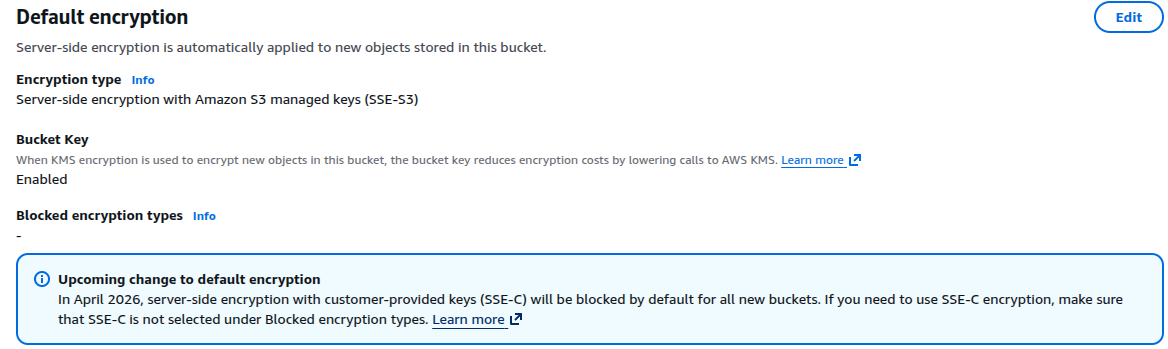
- Under Default encryption, click Edit and enable Server-side encryption.
-
Choose an encryption option:
- SSE-S3 (Amazon S3–managed keys)
- SSE-KMS (AWS KMS–managed keys)
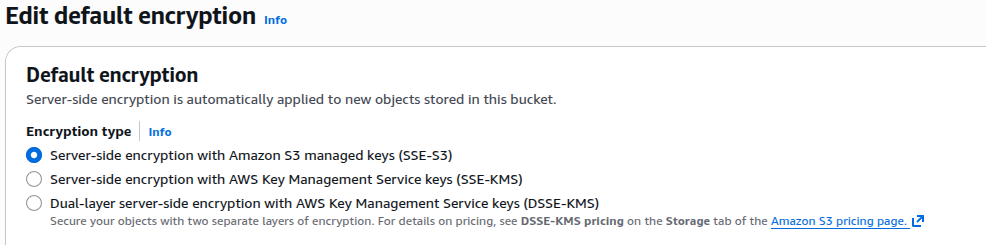
- Click Save changes.
Remediation via AWS CLI
-
Log in to the AWS Management Console and click the CloudShell icon (
>_) in the top-right corner.
-
Enable default encryption using SSE-S3:
aws s3api put-bucket-encryption \
--bucket <bucket-name> \
--server-side-encryption-configuration '{
"Rules": [
{
"ApplyServerSideEncryptionByDefault": {
"SSEAlgorithm": "AES256"
}
}
]
}'
Updated on 06 March, 2026