Other Articles
- IAM - Enable User MFA
- IAM - Enforce Key Rotation
- IAM - Enforce Active Key Limit
- IAM - Disable Unused User Credentials
- IAM - Enforce Group Permission
- IAM - Enforce Password Length
- IAM - Prohibit Password Reuse
- IAM - Check Root Access Keys Existence
- IAM - Enable Root MFA
- IAM - Establish Support Role
- IAM - Enable Key Rotation
- Purge Expired Certificates
- EC2 Volume – Enable EBS Volume Backup
- EC2 Volume – Enable EBS Encryption
- EFS – Enable EFS Storage Backup
- S3 Bucket – Enable S3 Bucket Versioning
- S3 Bucket – Enable S3 Bucket Encryption
- S3 Bucket – Block S3 Bucket Public Access
- RDS DB Instance – Encryption of Storage
- RDS DB Instance – Enable Deletion Protection
- RDS DB Instance – Enable Auto Minor Version Upgrade
- DynamoDB Table – Enable Table Encryption
- DynamoDB Table – Enable Table Point In Time Recovery
- DynamoDB Table – Enable Table Deletion Protection
- EC2 Instance – Monitor CPU Utilization
- ECS Service – Monitor CPU Utilization
- ECS Service – Monitor Memory Utilization
- RDS DB Instance – Monitor Free Storage Space
- RDS DB Instance – Monitor CPU Utilization
- SQS Queue – Monitor Message Age
- SQS Queue – Monitor Message Visibility
- DynamoDB Table – Monitor Table Read Capacity
- DynamoDB Table – Monitor Table Write Capacity
- DynamoDB Table – Monitor Table Latency
- Enable CloudTrail
- EC2 VPC – Ensure Flow Logs are Enabled
- RDS DB Instance – Block Public Access
- EC2 Instance – Enable Deletion Protection
- ECS Service – Enable Auto Scaling
- Enable AWS Security Hub
- Enable GuardDuty
Encrypt CloudTrail Logs
Secure Configuration Checks > AWS
This check ensures that AWS CloudTrail logs are encrypted using a KMS key. Encrypting CloudTrail logs protects sensitive audit data from unauthorized access.
Check Details
- Resource: General
- Check: Encrypt CloudTrail logs
- Risk: Unencrypted logs can be read by unauthorized users
Remediation via AWS Console
-
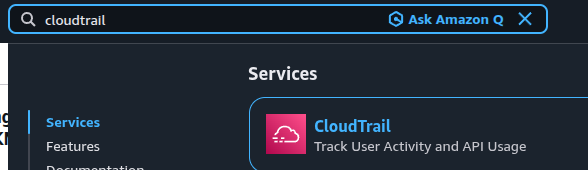
Log in to the AWS Management Console and open the CloudTrail console.
- In the left navigation panel, select Trails.
- Click on the trail to encrypt, then click Edit.
-
Under KMS Key Id, select an existing CMK (Customer Managed Key).
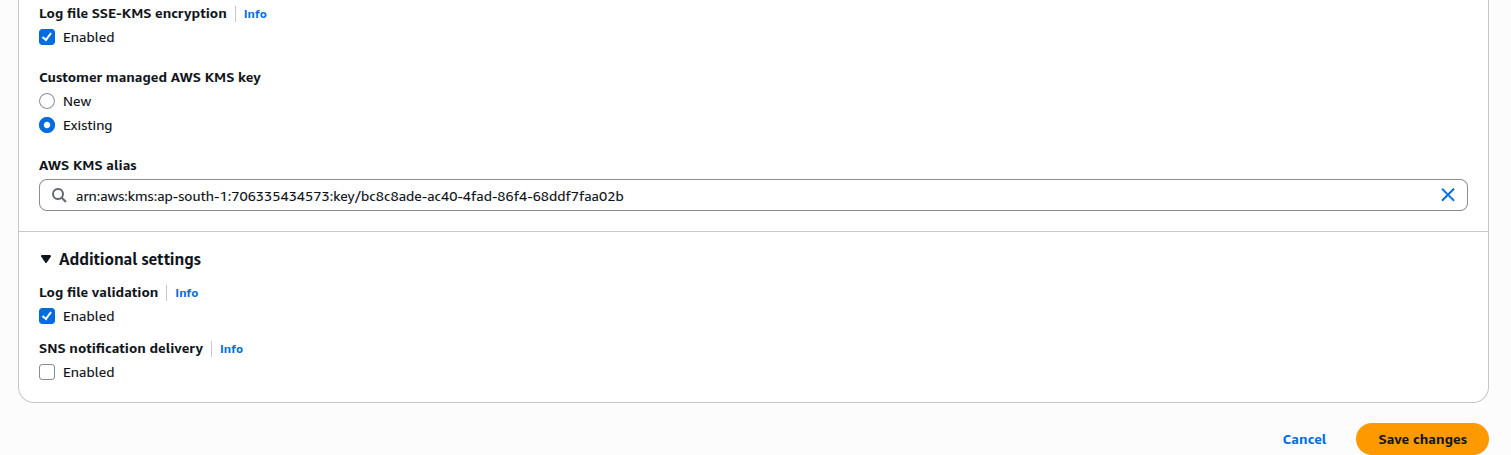
- Click Save. A notification will appear stating that you must have decryption permissions on the KMS key to decrypt log files. Click Yes.
Remediation via AWS CLI
-
Log in to the AWS Management Console and click the CloudShell icon (
>_) in the top-right corner.
-
Run the following command to specify a KMS key for your trail:
aws cloudtrail update-trail --name <trail-name> --kms-key-id <cloudtrail-kms-key>
-
Create a key policy JSON file:
nano /tmp/cloudtrail-kms-key-policy.json
Paste the following policy (replace
aws-account-id,username, andregionaccordingly):{ "Version": "2012-10-17", "Statement": [ { "Sid": "Allow CloudTrail access", "Effect": "Allow", "Principal": { "Service": "cloudtrail.amazonaws.com" }, "Action": "kms:DescribeKey", "Resource": "_" }, { "Sid": "Allow CloudTrail to encrypt logs", "Effect": "Allow", "Principal": { "Service": "cloudtrail.amazonaws.com" }, "Action": "kms:GenerateDataKey_", "Resource": "_", "Condition": { "StringLike": { "kms:EncryptionContext:aws:cloudtrail:arn": [ "arn:aws:cloudtrail:_:aws-account-id:trail/_" ] } } }, { "Sid": "Enable CloudTrail log decrypt permissions", "Effect": "Allow", "Principal": { "AWS": "arn:aws:iam::aws-account-id:user/username" }, "Action": "kms:Decrypt", "Resource": "_", "Condition": { "Null": { "kms:EncryptionContext:aws:cloudtrail:arn": "false" } } } ] }Save and exit (
Ctrl+O→Enter,Ctrl+X) -
Attach the key policy to the specified KMS key:
aws kms put-key-policy --key-id <cloudtrail-kms-key> --policy-name default --policy file:///tmp/cloudtrail-kms-key-policy.json
Updated on 06 March, 2026