Other Articles
- IAM - Enable User MFA
- IAM - Enforce Key Rotation
- IAM - Enforce Active Key Limit
- IAM - Disable Unused User Credentials
- IAM - Enforce Group Permission
- IAM - Enforce Password Length
- IAM - Prohibit Password Reuse
- IAM - Check Root Access Keys Existence
- IAM - Enable Root MFA
- IAM - Establish Support Role
- IAM - Enable Key Rotation
- Purge Expired Certificates
- EC2 Volume – Enable EBS Volume Backup
- EC2 Volume – Enable EBS Encryption
- EFS – Enable EFS Storage Backup
- S3 Bucket – Enable S3 Bucket Versioning
- S3 Bucket – Enable S3 Bucket Encryption
- S3 Bucket – Block S3 Bucket Public Access
- RDS DB Instance – Encryption of Storage
- RDS DB Instance – Enable Deletion Protection
- RDS DB Instance – Enable Auto Minor Version Upgrade
- DynamoDB Table – Enable Table Encryption
- DynamoDB Table – Enable Table Point In Time Recovery
- DynamoDB Table – Enable Table Deletion Protection
- EC2 Instance – Monitor CPU Utilization
- ECS Service – Monitor CPU Utilization
- ECS Service – Monitor Memory Utilization
- RDS DB Instance – Monitor Free Storage Space
- RDS DB Instance – Monitor CPU Utilization
- SQS Queue – Monitor Message Age
- SQS Queue – Monitor Message Visibility
- DynamoDB Table – Monitor Table Read Capacity
- DynamoDB Table – Monitor Table Write Capacity
- DynamoDB Table – Monitor Table Latency
- Enable CloudTrail
- Encrypt CloudTrail Logs
- EC2 VPC – Ensure Flow Logs are Enabled
- RDS DB Instance – Block Public Access
- EC2 Instance – Enable Deletion Protection
- Enable AWS Security Hub
- Enable GuardDuty
ECS Service – Enable Auto Scaling
Secure Configuration Checks > AWS
This check ensures that auto scaling is enabled for Amazon ECS services. Enabling auto scaling allows ECS services to automatically adjust the number of running tasks based on workload demand, improving availability and performance while reducing the risk of service outages.
Check Details
- Resource: ECS Service
- Check: Enable auto scaling for ECS service
- Risk: Service may fail under high load or waste resources during low demand
Remediation via AWS Console
-
Log in to the AWS Management Console and open the Amazon ECS console.
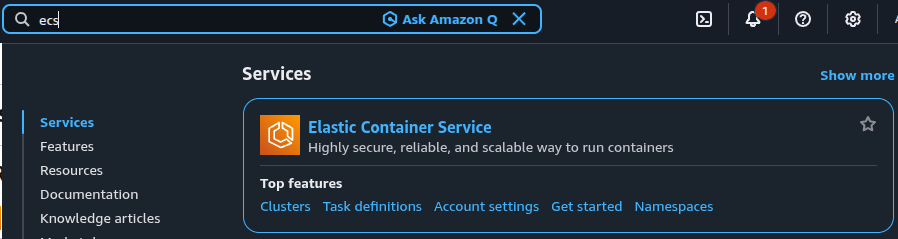
-
Navigate to Clusters and select your ECS cluster.
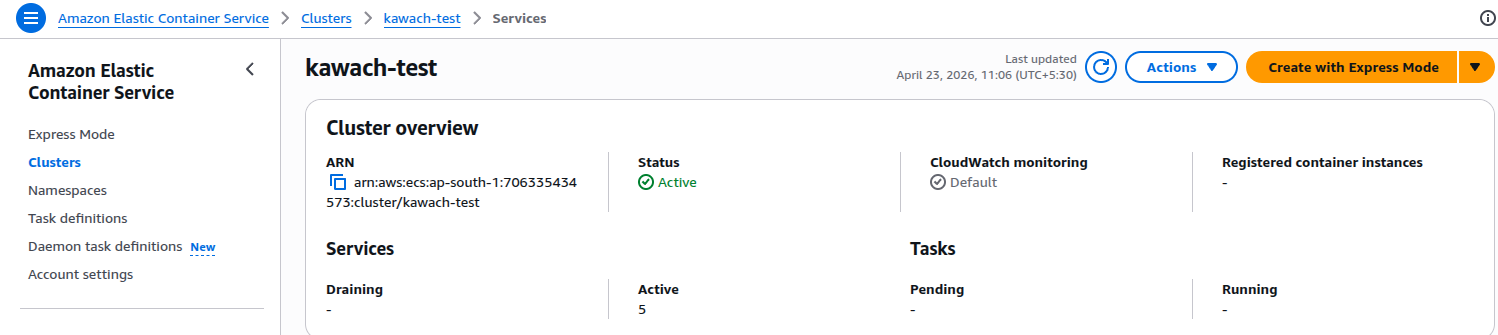
- Navigate to the Services tab and select the ECS service.
-
Select the target ECS service and click the Update button.
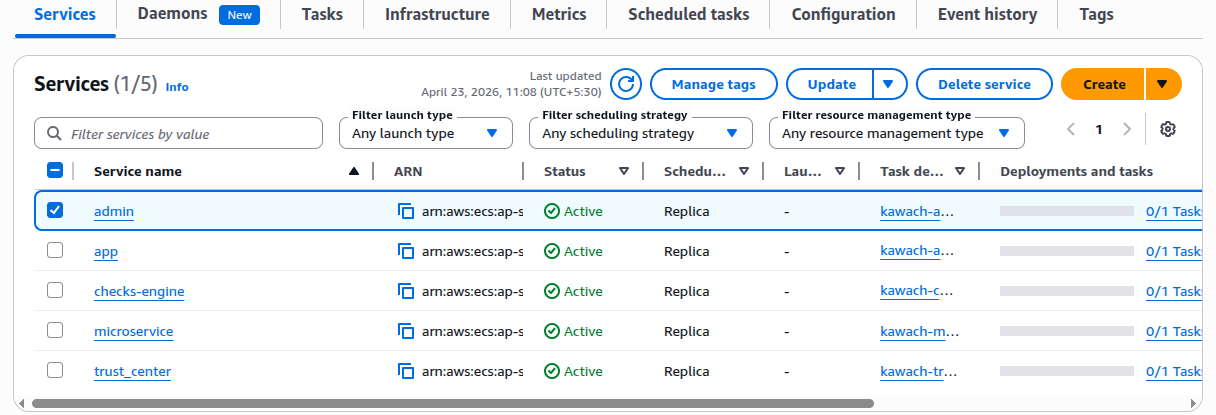
-
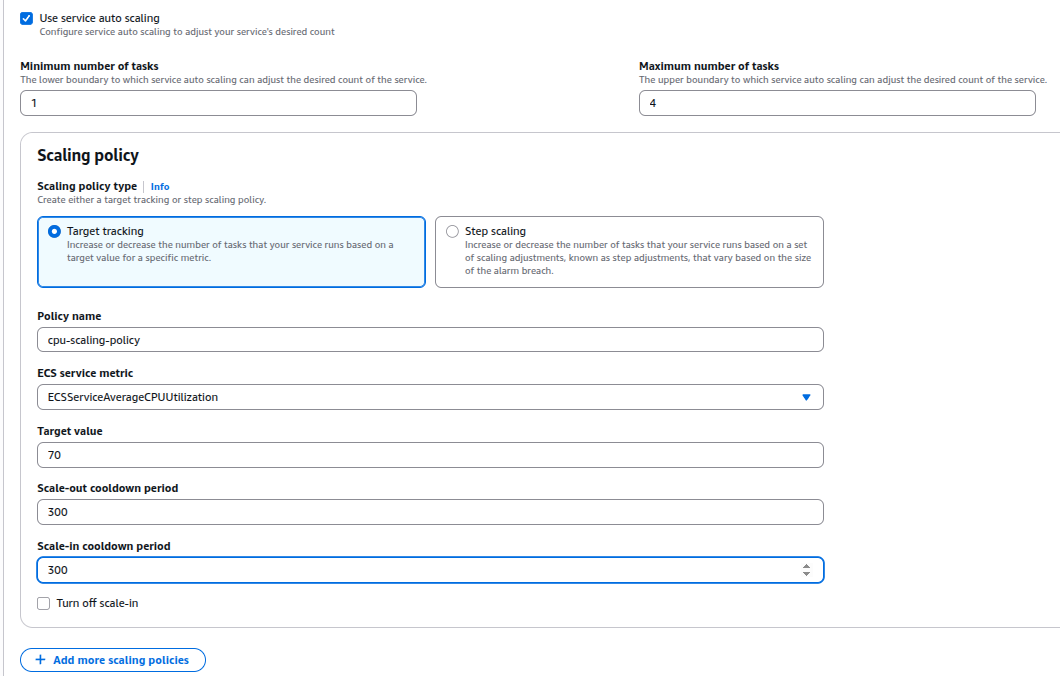
Scroll down to the Service Auto Scaling section.
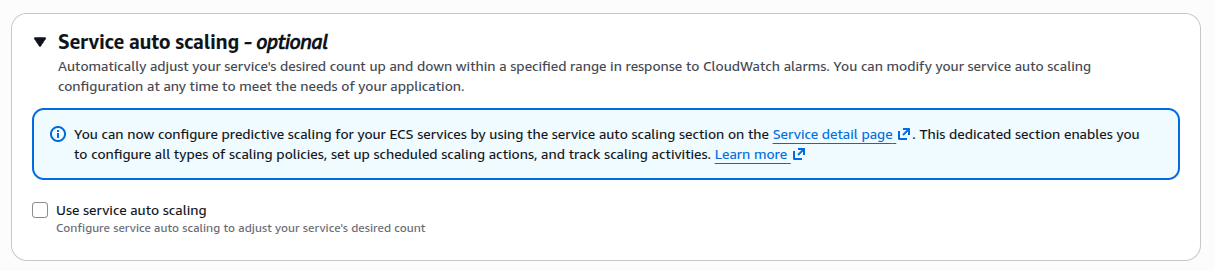
-
Check the option Use service auto scaling.
Configure scaling settings:- Set Minimum tasks (e.g., 1)
- Set Maximum tasks (e.g., 4)
The desired task count is automatically managed by the scaling policy based on the defined limits.
-
Add a scaling policy (recommended: Target Tracking):
- Select Target tracking as the scaling policy type
- Enter a Policy name (e.g., cpu-scaling-policy)
- Choose ECSServiceAverageCPUUtilization as the metric Set Target value (e.g., 70%)
- Configure Scale-out cooldown period (e.g., 300 seconds)
- Configure Scale-in cooldown period (e.g., 300 seconds)
- Click Update Service to apply changes.
Remediation via AWS CLI
-
Open AWS CloudShell or your terminal with configured AWS CLI.
-
Register the ECS service as a scalable target:
aws application-autoscaling register-scalable-target \
--service-namespace ecs \
--resource-id service/<cluster-name>/<service-name> \
--scalable-dimension ecs:service:DesiredCount \
--min-capacity 1 \
--max-capacity 4
-
Create a target tracking scaling policy:
aws application-autoscaling put-scaling-policy \
--service-namespace ecs \
--resource-id service/<cluster-name>/<service-name> \
--scalable-dimension ecs:service:DesiredCount \
--policy-name cpu-scaling-policy \
--policy-type TargetTrackingScaling \
--target-tracking-scaling-policy-configuration '{
  "TargetValue": 70.0,
  "PredefinedMetricSpecification": {
    "PredefinedMetricType": "ECSServiceAverageCPUUtilization"
  }
}'
Replace <cluster-name> and <service-name> with your ECS cluster and service names.
Updated on 23 April, 2026