Other Articles
- IAM - Enable User MFA
- IAM - Enforce Key Rotation
- IAM - Enforce Active Key Limit
- IAM - Disable Unused User Credentials
- IAM - Enforce Group Permission
- IAM - Enforce Password Length
- IAM - Prohibit Password Reuse
- IAM - Check Root Access Keys Existence
- IAM - Enable Root MFA
- IAM - Establish Support Role
- IAM - Enable Key Rotation
- Purge Expired Certificates
- EC2 Volume – Enable EBS Volume Backup
- EC2 Volume – Enable EBS Encryption
- EFS – Enable EFS Storage Backup
- S3 Bucket – Enable S3 Bucket Versioning
- S3 Bucket – Enable S3 Bucket Encryption
- S3 Bucket – Block S3 Bucket Public Access
- RDS DB Instance – Encryption of Storage
- RDS DB Instance – Enable Deletion Protection
- RDS DB Instance – Enable Auto Minor Version Upgrade
- DynamoDB Table – Enable Table Encryption
- DynamoDB Table – Enable Table Point In Time Recovery
- DynamoDB Table – Enable Table Deletion Protection
- EC2 Instance – Monitor CPU Utilization
- ECS Service – Monitor CPU Utilization
- ECS Service – Monitor Memory Utilization
- RDS DB Instance – Monitor Free Storage Space
- RDS DB Instance – Monitor CPU Utilization
- SQS Queue – Monitor Message Age
- SQS Queue – Monitor Message Visibility
- DynamoDB Table – Monitor Table Write Capacity
- DynamoDB Table – Monitor Table Latency
- Enable CloudTrail
- Encrypt CloudTrail Logs
- EC2 VPC – Ensure Flow Logs are Enabled
- RDS DB Instance – Block Public Access
- EC2 Instance – Enable Deletion Protection
- ECS Service – Enable Auto Scaling
- Enable AWS Security Hub
- Enable GuardDuty
DynamoDB Table – Monitor Table Read Capacity
Secure Configuration Checks > AWS
This check ensures that DynamoDB table read capacity usage is actively monitored. Monitoring read capacity helps detect throttling issues, performance bottlenecks, and unexpected workload spikes.
Check Details
- Resource: DynamoDB Table
- Check: Monitor DynamoDB table read capacity
- Risk: Read throttling and degraded application performance
Remediation via AWS Console
-
Log in to the AWS Management Console and open the Amazon DynamoDB console.
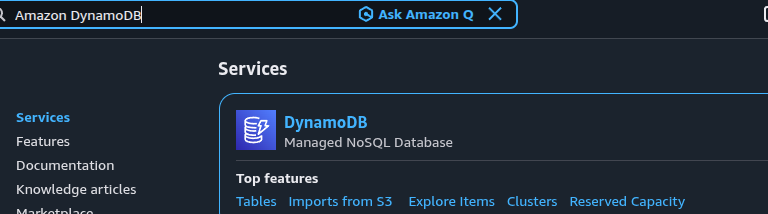
- In the left navigation panel, click Tables and select the affected DynamoDB table.
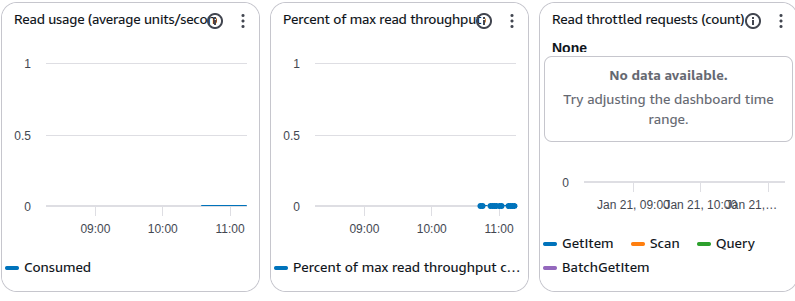
- Open the Monitor tab.
-
Ensure the following metric is visible and updating:
- ConsumedReadCapacityUnits
Monitoring via AWS CLI
-
Log in to the AWS Management Console and click the CloudShell icon (
>_) in the top-right corner.
-
Describe DynamoDB tables in the region:
aws dynamodb list-tables
-
Monitor read capacity using CloudWatch metrics:
aws cloudwatch get-metric-statistics \
 --namespace AWS/DynamoDB \
 --metric-name ConsumedReadCapacityUnits \
 --dimensions Name=TableName,Value=<table-name> \
 --statistics Sum \
 --period 300 \
 --start-time $(date -u -d '15 minutes ago' +%Y-%m-%dT%H:%M:%SZ) \
 --end-time $(date -u +%Y-%m-%dT%H:%M:%SZ)
Regularly review read capacity metrics and configure CloudWatch alarms to proactively detect throttling or abnormal usage patterns.
Updated on 06 March, 2026