Other Articles
- IAM - Enable User MFA
- IAM - Enforce Key Rotation
- IAM - Enforce Active Key Limit
- IAM - Disable Unused User Credentials
- IAM - Enforce Group Permission
- IAM - Enforce Password Length
- IAM - Prohibit Password Reuse
- IAM - Check Root Access Keys Existence
- IAM - Enable Root MFA
- IAM - Establish Support Role
- IAM - Enable Key Rotation
- Purge Expired Certificates
- EC2 Volume – Enable EBS Volume Backup
- EC2 Volume – Enable EBS Encryption
- EFS – Enable EFS Storage Backup
- S3 Bucket – Enable S3 Bucket Versioning
- S3 Bucket – Enable S3 Bucket Encryption
- S3 Bucket – Block S3 Bucket Public Access
- RDS DB Instance – Encryption of Storage
- RDS DB Instance – Enable Deletion Protection
- RDS DB Instance – Enable Auto Minor Version Upgrade
- DynamoDB Table – Enable Table Encryption
- DynamoDB Table – Enable Table Point In Time Recovery
- DynamoDB Table – Enable Table Deletion Protection
- EKS Cluster – Enable Secrets Encryption
- OpenSearch Domain – Enable Encryption at Rest
- RDS DB Cluster – Retain Backups for 7 Days
- RDS DB Cluster – Encryption of Storage
- RDS DB Cluster – Enable Deletion Protection
- EC2 Instance – Monitor CPU Utilization
- ECS Service – Monitor CPU Utilization
- ECS Service – Monitor Memory Utilization
- RDS DB Instance – Monitor Free Storage Space
- RDS DB Instance – Monitor CPU Utilization
- SQS Queue – Monitor Message Age
- SQS Queue – Monitor Message Visibility
- DynamoDB Table – Monitor Table Read Capacity
- DynamoDB Table – Monitor Table Write Capacity
- DynamoDB Table – Monitor Table Latency
- Enable CloudTrail
- Encrypt CloudTrail Logs
- EC2 VPC – Ensure Flow Logs are Enabled
- CloudWatch Log Group – Enable KMS Encryption
- CloudWatch Log Group – Configure Retention
- Load Balancer – Enable Access Logs
- RDS DB Instance – Block Public Access
- EC2 Security Group – Restrict Public SSH and RDP Access
- EC2 Security Group – Restrict Public Database Access
- EKS Cluster – Restrict Public Endpoint
- EC2 VPC – Restrict Default Security Group Traffic
- Load Balancer – Redirect HTTP Traffic to HTTPS
- Load Balancer – Use Strong TLS Policies
- OpenSearch Domain – Enable Node-to-Node Encryption
- OpenSearch Domain – Enforce HTTPS
- OpenSearch Domain – Restrict Public Access
- RDS DB Cluster – Block Public Access
- EC2 Instance – Enable Deletion Protection
- ECS Service – Enable Auto Scaling
- Load Balancer – Enable Deletion Protection
- Enable AWS Security Hub
- Enable GuardDuty
- CloudFront Distribution – Enforce HTTPS for Viewers
- CloudFront Distribution – Require TLS 1.2 for Viewers
- CloudFront Distribution – Associate a WAF Web ACL
- CloudFront Distribution – Protect S3 Origin Access
- KMS Key – Avoid Pending Deletion
- SNS Topic – Enable Encryption
- SNS Topic – Restrict Topic Policy Access
EKS Cluster – Enable Control Plane Logging
Secure Configuration Checks > AWS
This check ensures that the API server, audit and authenticator control plane logs of an Amazon EKS cluster are enabled. Without these logs, you cannot see who called the Kubernetes API, what they changed or how they signed in.
Check Details
- Resource: EKS Cluster
- Check: Enable EKS cluster control plane logging (
ControlPlaneLoggingEnabled) - Risk: Attacks and misuse of the cluster go unnoticed, and you have no evidence for an investigation
Log types
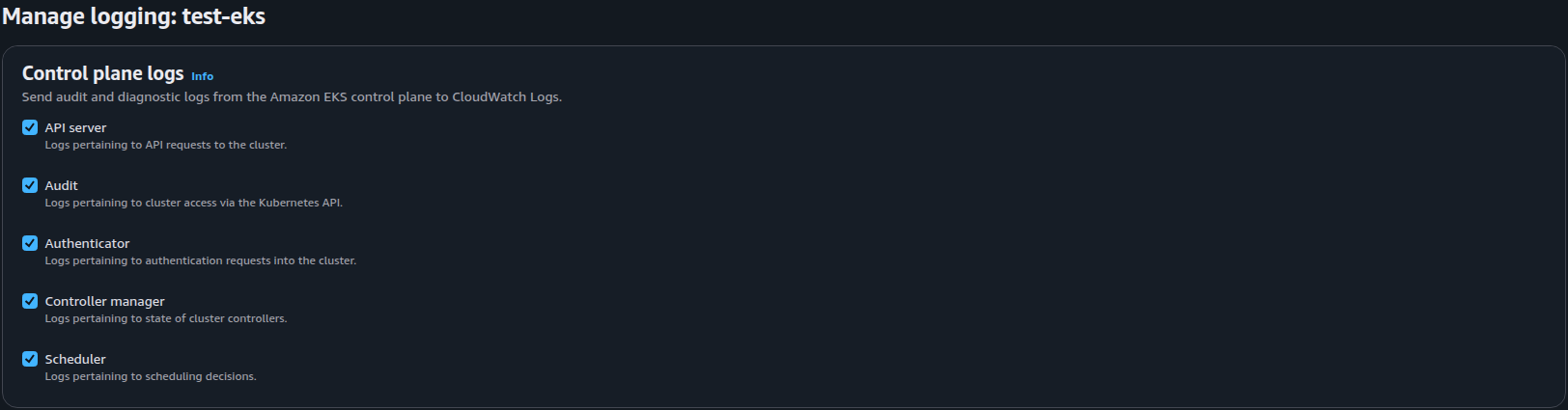
- API server (
api): Logs of the Kubernetes API server. Required by this check. - Audit (
audit): A record of the requests made to the API, by whom and when. Required by this check. - Authenticator (
authenticator): Logs of IAM-based authentication to the cluster. Required by this check. - Controller manager (
controllerManager): Logs of the Kubernetes controllers. Optional. - Scheduler (
scheduler): Logs of pod scheduling decisions. Optional.
Remediation via AWS Console
-
Open the Amazon EKS console and select the affected cluster.

-
Open the Configuration tab and locate the Control plane logs section.
-
Click Manage and enable API server, Audit, and Authenticator logs. Optionally enable Controller manager and Scheduler.
-
Click Save changes and verify that the selected log types are enabled.
-
Repeat for every affected cluster.
Note: Control plane logs are sent to Amazon CloudWatch Logs. Standard CloudWatch ingestion and storage charges apply.
Remediation via AWS CLI
-
Log in to the AWS Management Console and click the CloudShell icon (
>_) in the top-right corner.
-
List the clusters where one of the three required log types is not enabled:
for c in $(aws eks list-clusters --query 'clusters[]' --output text); do
  aws eks describe-cluster --name "$c" --output json | \
  jq -r '.cluster
    | ([.logging.clusterLogging[] | select(.enabled == true) | .types[]]) as $on
    | select(any(["api","audit","authenticator"][]; . as $t | ($on | index($t)) == null))
    | .name'
done
The command covers one region. Add
--region <region>to eachawscommand to check another. -
Enable the required log types:
aws eks update-cluster-config \
--name <cluster-name> \
--logging '{"clusterLogging":[{"types":["api","audit","authenticator"],"enabled":true}]}'
To also enable the optional logs, add
"controllerManager"and"scheduler"to thetypeslist.Wait for the update to finish:
aws eks wait cluster-active --name <cluster-name>
-
Set a retention period on the log group. By default CloudWatch keeps the logs forever:
aws logs put-retention-policy \
--log-group-name /aws/eks/<cluster-name>/cluster \
--retention-in-days <days>
-
Verify the logging configuration:
aws eks describe-cluster \
--name <cluster-name> \
--query 'cluster.logging'
Replace <cluster-name> with the name of the cluster, for example prod-cluster.
Replace <days> with the number of days to keep the logs, for example 365.
Repeat steps 3 to 5 for each cluster.
Updated on 03 November, 2026