Other Articles
- IAM - Enable User MFA
- IAM - Enforce Key Rotation
- IAM - Enforce Active Key Limit
- IAM - Disable Unused User Credentials
- IAM - Enforce Group Permission
- IAM - Enforce Password Length
- IAM - Prohibit Password Reuse
- IAM - Check Root Access Keys Existence
- IAM - Enable Root MFA
- IAM - Establish Support Role
- IAM - Enable Key Rotation
- Purge Expired Certificates
- EC2 Volume – Enable EBS Volume Backup
- EC2 Volume – Enable EBS Encryption
- EFS – Enable EFS Storage Backup
- S3 Bucket – Enable S3 Bucket Versioning
- S3 Bucket – Enable S3 Bucket Encryption
- S3 Bucket – Block S3 Bucket Public Access
- RDS DB Instance – Encryption of Storage
- RDS DB Instance – Enable Deletion Protection
- RDS DB Instance – Enable Auto Minor Version Upgrade
- DynamoDB Table – Enable Table Encryption
- DynamoDB Table – Enable Table Point In Time Recovery
- DynamoDB Table – Enable Table Deletion Protection
- EKS Cluster – Enable Secrets Encryption
- OpenSearch Domain – Enable Encryption at Rest
- RDS DB Cluster – Retain Backups for 7 Days
- RDS DB Cluster – Encryption of Storage
- RDS DB Cluster – Enable Deletion Protection
- EC2 Instance – Monitor CPU Utilization
- ECS Service – Monitor CPU Utilization
- ECS Service – Monitor Memory Utilization
- RDS DB Instance – Monitor Free Storage Space
- RDS DB Instance – Monitor CPU Utilization
- SQS Queue – Monitor Message Age
- SQS Queue – Monitor Message Visibility
- DynamoDB Table – Monitor Table Read Capacity
- DynamoDB Table – Monitor Table Write Capacity
- DynamoDB Table – Monitor Table Latency
- Enable CloudTrail
- Encrypt CloudTrail Logs
- EC2 VPC – Ensure Flow Logs are Enabled
- EKS Cluster – Enable Control Plane Logging
- CloudWatch Log Group – Enable KMS Encryption
- CloudWatch Log Group – Configure Retention
- Load Balancer – Enable Access Logs
- RDS DB Instance – Block Public Access
- EC2 Security Group – Restrict Public SSH and RDP Access
- EC2 Security Group – Restrict Public Database Access
- EKS Cluster – Restrict Public Endpoint
- EC2 VPC – Restrict Default Security Group Traffic
- Load Balancer – Redirect HTTP Traffic to HTTPS
- Load Balancer – Use Strong TLS Policies
- OpenSearch Domain – Enable Node-to-Node Encryption
- OpenSearch Domain – Enforce HTTPS
- OpenSearch Domain – Restrict Public Access
- RDS DB Cluster – Block Public Access
- EC2 Instance – Enable Deletion Protection
- ECS Service – Enable Auto Scaling
- Load Balancer – Enable Deletion Protection
- Enable AWS Security Hub
- Enable GuardDuty
- CloudFront Distribution – Enforce HTTPS for Viewers
- CloudFront Distribution – Require TLS 1.2 for Viewers
- CloudFront Distribution – Associate a WAF Web ACL
- KMS Key – Avoid Pending Deletion
- SNS Topic – Enable Encryption
- SNS Topic – Restrict Topic Policy Access
CloudFront Distribution – Protect S3 Origin Access
Secure Configuration Checks > AWS
This check ensures that every S3 bucket origin of a CloudFront distribution uses Origin Access Control (OAC) or Origin Access Identity (OAI). The bucket then stays private and can be read only through CloudFront.
Check Details
- Resource: CloudFront Distribution
- Check: Protect CloudFront S3 origin access (
S3OriginAccessProtected) - Risk: Users can bypass CloudFront and read the bucket directly
Remediation via AWS Console
-
Open the Amazon CloudFront console.

-
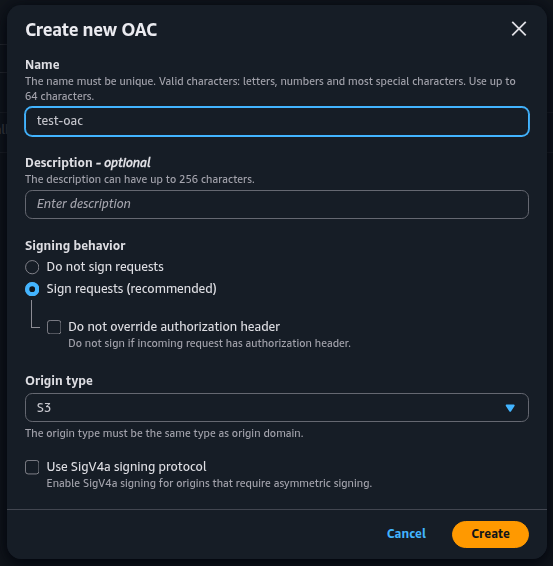
Navigate to Origin access > Create control setting. Enter a name, select S3, keep Sign requests (recommended), and click Create.
-
Open Distributions, select the affected distribution, and navigate to Origins.

-
Edit the affected S3 origin. Under Origin access, select Origin access control settings (recommended) and choose the OAC created earlier.
-
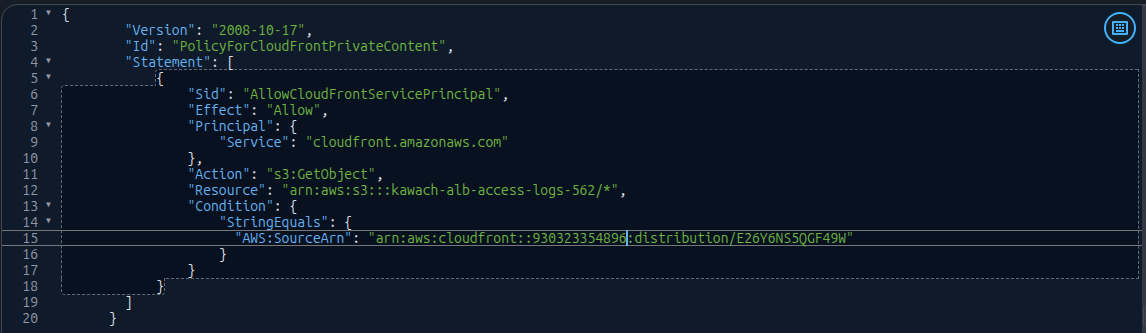
Update the S3 bucket policy to allow cloudfront.amazonaws.com access, restricting it with the AWS:SourceArn condition to the affected distribution.
-
Save the CloudFront origin changes and repeat for other S3 origins requiring restricted access.
-
Wait for deployment to complete and verify that the content is accessible through CloudFront.
Note: OAC supports regular S3 bucket origins, not S3 static website endpoints. For SSE-KMS encrypted buckets, update the KMS key policy to grant CloudFront access. Preserve existing bucket policy statements when adding permissions.
Remediation via AWS CLI
-
Log in to the AWS Management Console and click the CloudShell icon (
>_) in the top-right corner.
-
Create an origin access control and note its ID:
aws cloudfront create-origin-access-control \
--origin-access-control-config \
"Name=<oac-name>,SigningProtocol=sigv4,SigningBehavior=always,OriginAccessControlOriginType=s3" \
--query 'OriginAccessControl.Id' \
--output text
-
Allow the distribution to read the bucket:
cat > policy.json <<EOF
{
  "Version": "2012-10-17",
  "Statement": {
    "Sid": "AllowCloudFrontServicePrincipalReadOnly",
    "Effect": "Allow",
    "Principal": {"Service": "cloudfront.amazonaws.com"},
    "Action": "s3:GetObject",
    "Resource": "arn:aws:s3:::<bucket-name>/*",
    "Condition": {"StringEquals": {"AWS:SourceArn":
      "arn:aws:cloudfront::<account-id>:distribution/<distribution-id>"}}
  }
}
EOF

aws s3api put-bucket-policy \
--bucket <bucket-name> \
--policy file://policy.json
This command replaces the existing bucket policy. If the bucket already has one, merge the statement into it first.
-
Download the current distribution configuration:
aws cloudfront get-distribution-config \
--id <distribution-id> > dist-config.json
-
Attach the OAC to the S3 origin:
OAC_ID="<oac-id>"
ORIGIN_ID="<origin-id>"
ETAG=$(jq -r '.ETag' dist-config.json)

jq --arg oac "$OAC_ID" --arg oid "$ORIGIN_ID" '.DistributionConfig
| .Origins.Items |= map(
if .Id == $oid then
.OriginAccessControlId = $oac
| .S3OriginConfig.OriginAccessIdentity = ""
else . end)' \
 dist-config.json > updated-config.json
-
Apply the updated configuration:
aws cloudfront update-distribution \
--id <distribution-id> \
--if-match "$ETAG" \
--distribution-config file://updated-config.json
-
Verify that every S3 origin has an access method:
aws cloudfront get-distribution-config \
--id <distribution-id> \
--query 'DistributionConfig.Origins.Items[*].[Id,OriginAccessControlId,S3OriginConfig.OriginAccessIdentity]' \
--output table
Replace <distribution-id> with your distribution ID, for example E1ABCDEF234567.
Replace <origin-id> with the origin ID shown on the Origins tab.
Repeat steps 4 to 6 for each S3 origin.
Updated on 03 November, 2026