Other Articles
- EC2 Volume – Enable EBS Encryption
- EC2 Volume – Enable EBS Volume Backup
- EFS – Enable EFS Storage Backup
- EC2 Instance – Enable Deletion Protection
- EC2 Instance – Monitor CPU Utilization
- ECS Service – Monitor CPU Utilization
- ECS Service – Monitor Memory Utilization
- EC2 VPC – Ensure Flow Logs are Enabled
- S3 Bucket – Block S3 Bucket Public Access
- S3 Bucket – Enable S3 Bucket Versioning
- S3 Bucket – Enable S3 Bucket Encryption
- RDS DB Instance – Enable Auto Minor Version Upgrade
- RDS DB Instance – Block Public Access
- RDS DB Instance – Monitor Free Storage Space
- RDS DB Instance – Monitor CPU Utilization
- RDS DB Instance – Encryption of Storage
- RDS DB Instance – Enable Deletion Protection
- SQS Queue – Monitor Message Age
- SQS Queue – Monitor Message Visibility
- DynamoDB Table – Enable Table Encryption
- DynamoDB Table – Enable Table Point In Time Recovery
- DynamoDB Table – Enable Table Deletion Protection
- DynamoDB Table – Monitor Table Read Capacity
- DynamoDB Table – Monitor Table Write Capacity
- DynamoDB Table – Monitor Table Latency
- Enable User MFA
- Enforce Key Rotation
- Enforce Active Key Limit
- Disable Unused User Credentials
- Enable CloudTrail
- Enable AWS Security Hub
- Enforce Password Length
- Prohibit Password Reuse
- Purge Expired Certificates
- Check Root Access Keys Existence
- Enable Root MFA
- Establish Support Role
- Enable Key Rotation
- Encrypt CloudTrail Logs
- Enable GuardDuty
Enforce Group Permission
This check ensures that IAM users receive permissions only through IAM groups and not via policies attached directly to users. Group-based permission management simplifies access control, improves consistency, and reduces the risk of excessive privileges.
Check Details
- Resource: Users
- Check: Enforce group permission
- Risk: Directly attached user policies can lead to inconsistent and excessive permissions
Remediation via AWS Console
-
Sign in to the AWS Management Console and open the
IAM console.

- In the left navigation panel, click Users and select an IAM user.
-
Open the Permissions tab to review directly attached
policies.
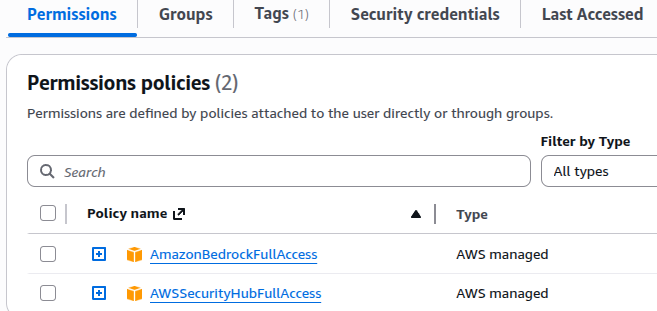
-
Create an IAM group (if not already present):
- In the left navigation pane, click User groups
- Click Create group
- Enter a group name
- Attach the required permission policies
- Click Create group

-
Attach the required permissions to the group:
- Select the group
- Open the Permissions tab
- Click Add permissions and attach required policies
- Save the changes
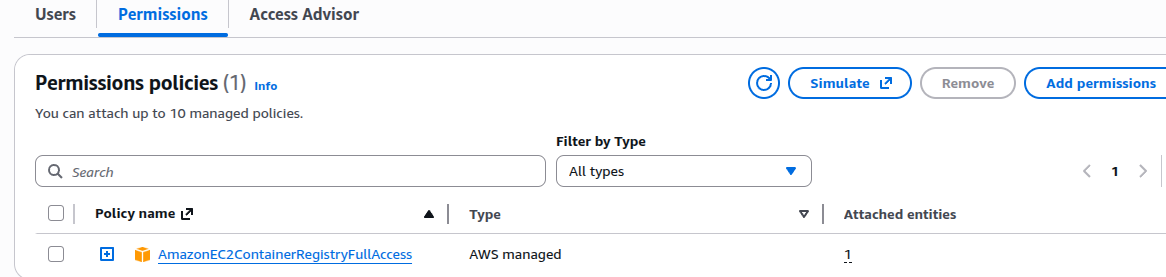
-
Add the IAM user to the appropriate group:
- Open Users
- Select the IAM user
- Click Add user to groups
- Select the appropriate group
- Click Add

-
Remove directly attached policies from the user:
- Go back to the Permissions tab of the IAM user
- Under Attached directly, select each policy
- Click Remove and confirm
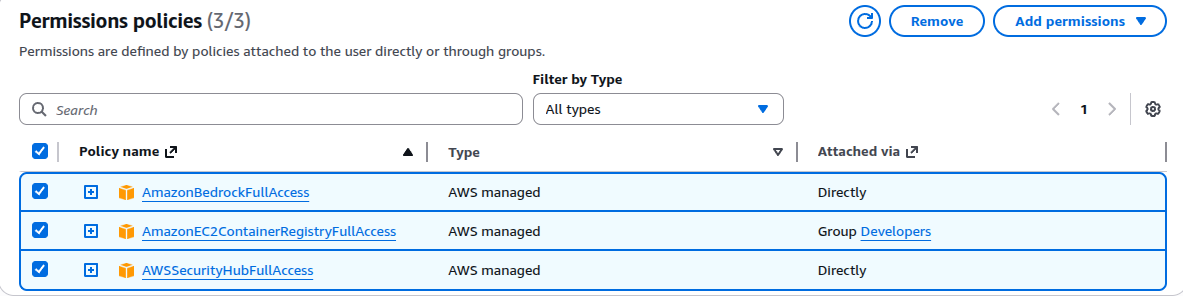
- Repeat these steps for all IAM users.
Remediation via AWS CLI
-
Log in to the AWS Management Console and click the
CloudShell icon (
>_) in the top-right corner.
-
List all IAM users:
aws iam list-users \ --query "Users[*].UserName" \ --output table -
Check for policies directly attached to a user:
aws iam list-attached-user-policies \
 --user-name <user-name>
If policy ARNs are returned, the user has direct permissions and the check is failing.
-
Create an IAM group (if required):
aws iam create-group --group-name <group-name> -
Attach required policies to the group:
aws iam attach-group-policy \ --group-name <group-name> \ --policy-arn arn:aws:iam::aws:policy/<policy-name> -
Add the IAM user to the group:
aws iam add-user-to-group \ --user-name <user-name> \ --group-name <group-name> -
Remove directly attached policies from the user:
aws iam detach-user-policy \
 --user-name <user-name> \
 --policy-arn <policy-arn>