Other Articles
- EC2 Volume – Enable EBS Encryption
- EC2 Volume – Enable EBS Volume Backup
- EFS – Enable EFS Storage Backup
- EC2 Instance – Enable Deletion Protection
- EC2 Instance – Monitor CPU Utilization
- ECS Service – Monitor CPU Utilization
- ECS Service – Monitor Memory Utilization
- EC2 VPC – Ensure Flow Logs are Enabled
- S3 Bucket – Block S3 Bucket Public Access
- S3 Bucket – Enable S3 Bucket Versioning
- S3 Bucket – Enable S3 Bucket Encryption
- RDS DB Instance – Enable Auto Minor Version Upgrade
- RDS DB Instance – Block Public Access
- RDS DB Instance – Monitor Free Storage Space
- RDS DB Instance – Monitor CPU Utilization
- RDS DB Instance – Encryption of Storage
- RDS DB Instance – Enable Deletion Protection
- SQS Queue – Monitor Message Age
- SQS Queue – Monitor Message Visibility
- DynamoDB Table – Enable Table Encryption
- DynamoDB Table – Enable Table Point In Time Recovery
- DynamoDB Table – Enable Table Deletion Protection
- DynamoDB Table – Monitor Table Read Capacity
- DynamoDB Table – Monitor Table Write Capacity
- DynamoDB Table – Monitor Table Latency
- Enforce Key Rotation
- Enforce Active Key Limit
- Disable Unused User Credentials
- Enforce Group Permission
- Enable CloudTrail
- Enable AWS Security Hub
- Enforce Password Length
- Prohibit Password Reuse
- Purge Expired Certificates
- Check Root Access Keys Existence
- Enable Root MFA
- Establish Support Role
- Enable Key Rotation
- Encrypt CloudTrail Logs
- Enable GuardDuty
Enable User MFA
This check ensures that Multi-Factor Authentication (MFA) is enabled for AWS IAM users. MFA adds an additional layer of security by requiring users to provide a second authentication factor along with their password.
Check Details
- Resource: Users
- Check: Enable user MFA
- Risk: Unauthorized access if credentials are compromised
Remediation via AWS Console
-
Sign in to the AWS Management Console and open the
IAM console.

- In the left navigation panel, click Users. Select the IAM user for whom MFA must be enabled.
-
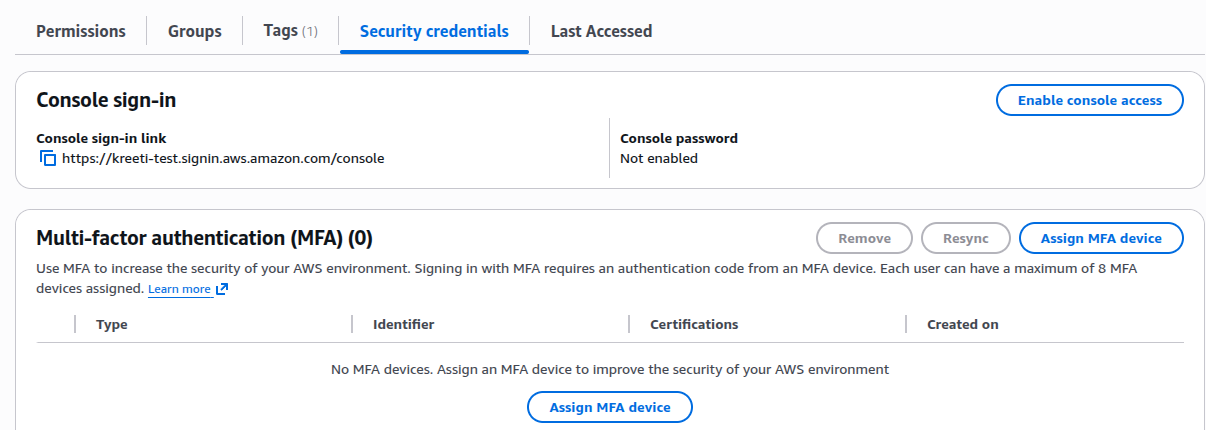
Open the Security credentials tab.
-
Under Multi-factor authentication (MFA), click
Assign MFA device.
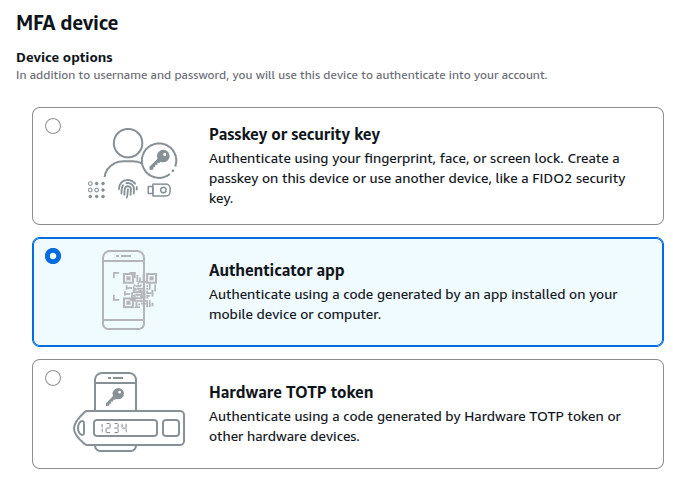
Select Authenticator app and click Next.
-
Configure the authenticator app:
- A QR code and secret configuration key will be displayed
- Open your authenticator app (Google Authenticator / Microsoft Authenticator / Authy)
- Add a new account or device
- Scan the QR code or enter the secret key manually
- The app will start generating 6-digit codes
- Enter the generated MFA code and click Add MFA.