Other Articles
- Cloud SQL – Configure Private IP
- Cloud SQL – Monitor CPU Utilization
- Cloud SQL – Enable Deletion Protection
- Cloud SQL – Enable Disk Encryption
- Cloud SQL – Enable Automated Backups
- Cloud SQL – Enable Log Export
- Cloud SQL – Enforce Password Validation
- Cloud SQL – Protect From Internet Access
- Cloud SQL – Enforce Secure Transport
- Compute Engine – Block Project-Wide SSH Keys
- Compute Engine – Disable IP Forwarding
- Compute Engine – Disable Public IP Addresses
- Compute Engine – Disable Serial Port Access
- Compute Engine – Enable Confidential Computing
- Compute Engine – Enable OS Login
- Compute Engine – Enable Shielded VM
- Compute Engine – Restrict Default Service Account
- General – Deny Public Access to KMS Keys
- General – Enforce Duties Separation
- General – Enforce KMS Key Rotation
- General – Restrict Admin Roles on Service Accounts
- Cloud Run – Configure Timeout Settings
- Cloud Storage – Enable Bucket Encryption
- Cloud Storage – Enable Bucket Logging
- Cloud Storage – Enable Bucket Versioning
- Cloud Storage – Enforce Uniform Bucket-Level Access
- Cloud Storage – Restrict Public Access
- IAM Users – Enforce GCP-Managed Keys
- IAM Users – Rotate External User-Managed Service Account Keys
- GKE – Enable Private Nodes
- GKE – Restrict Control Plane Access
- GKE – Disable Legacy ABAC
- GKE – Enable Network Policy
- GKE – Enable Shielded Nodes
- GKE – Enable Node Auto-Upgrade and Auto-Repair
- GKE Cluster – Enable Cluster Logging
- General – Enable Cloud Audit Logs
- General – Configure a Log Sink
- General – Configure Log Bucket Retention
- Cloud SQL – Enable High Availability
- Cloud SQL – Configure Maintenance Window
- Cloud Storage – Configure Bucket Retention or Lifecycle
- General – Enable Security Command Center
- Compute Engine – Enable Instance Deletion Protection
- VPC Firewall – Restrict Public SSH and RDP Access
- VPC Firewall – Restrict Public Database Access
- VPC Network – Avoid the Default Network
- VPC Network – Enable Subnet Flow Logs
GKE – Enable Workload Identity
Secure Configuration Checks > GCP
This check ensures that Workload Identity Federation is enabled for Google Kubernetes Engine (GKE) clusters. With Workload Identity, each workload gets its own identity and only the permissions that it needs, instead of sharing the credentials of the node that it runs on.
Check Details
- Resource: GKE Cluster
- Check: Enable Workload Identity
- Risk: If workloads use node credentials, every pod on a node gets the permissions of the node service account. An attacker who compromises one pod can use these permissions to reach other Google Cloud resources.
Remediation via Google Cloud Console
-
Log in to the Google Cloud Console and navigate to
Kubernetes Engine > Clusters.
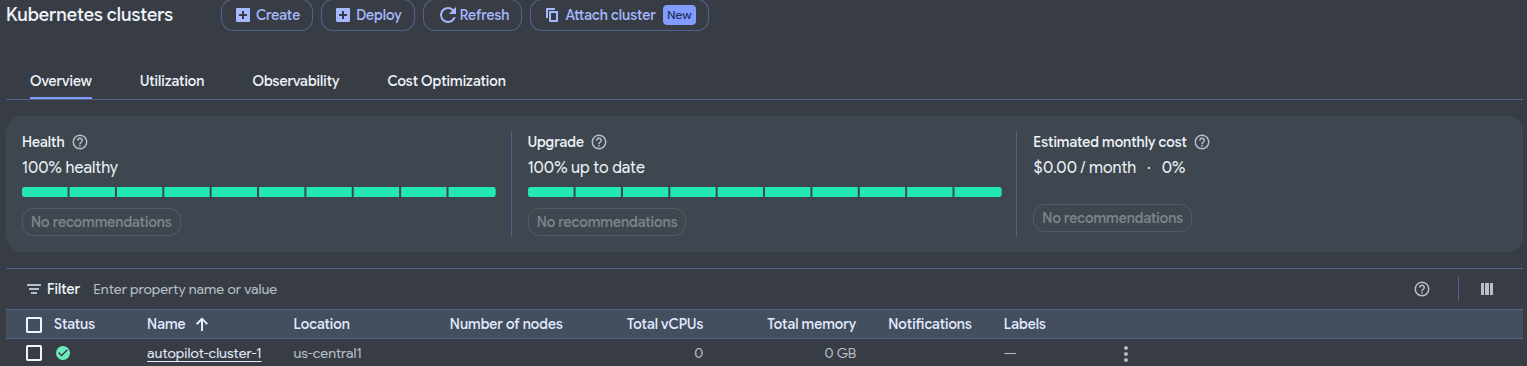
- Click the name of the affected GKE cluster.
-
In the Security section of the cluster details page,
click the Edit icon next to
Workload Identity.

-
Select Enable Workload Identity and click
Save changes.

- For Standard clusters only: Open the Nodes tab and locate the Node Pools section. Select the node pool that you want to update.
- On the node pool details page, click Edit. Under Security, select Enable GKE Metadata Server and click Save.
- Repeat the previous two steps for every existing Standard node pool.
Note: Autopilot clusters have Workload Identity Federation enabled by default, so node pool configuration is not required. If the Nodes tab is not available in your console, use the Google Cloud CLI instructions below to update existing Standard node pools.
Remediation via Google Cloud CLI
-
Open the Google Cloud Console and launch
Cloud Shell.

-
List the GKE clusters that do not have Workload Identity enabled:
gcloud container clusters list \
--filter="NOT workloadIdentityConfig.workloadPool:*" \
--format="table(name,location)"
-
Enable Workload Identity on the cluster:
gcloud container clusters update <CLUSTER_NAME> \
--location <LOCATION> \
--workload-pool=<PROJECT_ID>.svc.id.goog
-
Turn on the GKE metadata server for each existing node pool:
gcloud container node-pools update <NODE_POOL_NAME> \
--cluster <CLUSTER_NAME> \
--location <LOCATION> \
--workload-metadata=GKE_METADATA
-
Verify the settings:
gcloud container clusters describe <CLUSTER_NAME> \
--location <LOCATION> \
--format="value(workloadIdentityConfig.workloadPool)"

gcloud container node-pools describe <NODE_POOL_NAME> \
--cluster <CLUSTER_NAME> \
--location <LOCATION> \
--format="value(config.workloadMetadataConfig.mode)"
Replace
<CLUSTER_NAME>with the name of your GKE cluster,<LOCATION>with its region or zone,<NODE_POOL_NAME>with the name of the node pool, and<PROJECT_ID>with your Google Cloud project ID. The first command must return<PROJECT_ID>.svc.id.googand the second must returnGKE_METADATA. Updating a node pool recreates its nodes in a rolling update. After the change, pods no longer use the node service account. Grant each workload the access it needs by binding its Kubernetes service account to the required IAM roles, and test your applications before you update production.
Default Value
Workload Identity is not enabled on a Standard cluster unless it is turned on. Autopilot clusters have Workload Identity enabled.
Updated on 09 November, 2026