Other Articles
- Cloud SQL – Configure Private IP
- Cloud SQL – Monitor CPU Utilization
- Cloud SQL – Enable Deletion Protection
- Cloud SQL – Enable Disk Encryption
- Cloud SQL – Enable Automated Backups
- Cloud SQL – Enable Log Export
- Cloud SQL – Enforce Password Validation
- Cloud SQL – Protect From Internet Access
- Cloud SQL – Enforce Secure Transport
- Compute Engine – Block Project-Wide SSH Keys
- Compute Engine – Disable IP Forwarding
- Compute Engine – Disable Public IP Addresses
- Compute Engine – Disable Serial Port Access
- Compute Engine – Enable Confidential Computing
- Compute Engine – Enable OS Login
- Compute Engine – Enable Shielded VM
- Compute Engine – Restrict Default Service Account
- General – Deny Public Access to KMS Keys
- General – Enforce Duties Separation
- General – Enforce KMS Key Rotation
- General – Restrict Admin Roles on Service Accounts
- Cloud Run – Configure Timeout Settings
- Cloud Storage – Enable Bucket Encryption
- Cloud Storage – Enable Bucket Logging
- Cloud Storage – Enable Bucket Versioning
- Cloud Storage – Enforce Uniform Bucket-Level Access
- Cloud Storage – Restrict Public Access
- IAM Users – Enforce GCP-Managed Keys
- IAM Users – Rotate External User-Managed Service Account Keys
- GKE – Enable Private Nodes
- GKE – Enable Workload Identity
- GKE – Disable Legacy ABAC
- GKE – Enable Network Policy
- GKE – Enable Shielded Nodes
- GKE – Enable Node Auto-Upgrade and Auto-Repair
- GKE Cluster – Enable Cluster Logging
- General – Enable Cloud Audit Logs
- General – Configure a Log Sink
- General – Configure Log Bucket Retention
- Cloud SQL – Enable High Availability
- Cloud SQL – Configure Maintenance Window
- Cloud Storage – Configure Bucket Retention or Lifecycle
- General – Enable Security Command Center
- Compute Engine – Enable Instance Deletion Protection
- VPC Firewall – Restrict Public SSH and RDP Access
- VPC Firewall – Restrict Public Database Access
- VPC Network – Avoid the Default Network
- VPC Network – Enable Subnet Flow Logs
GKE – Restrict Control Plane Access
Secure Configuration Checks > GCP
This check ensures that access to the control plane of a Google Kubernetes Engine (GKE) cluster is restricted. The control plane runs the Kubernetes API server. Access should use a private endpoint, or be limited to authorized networks, so that the API server is not open to the entire internet.
Check Details
- Resource: GKE Cluster
- Check: Restrict control plane access
- Risk: If the control plane is reachable from any IP address, attackers can probe the Kubernetes API, try stolen or guessed credentials, and take control of the cluster and its workloads.
Remediation via Google Cloud Console
-
Log in to the Google Cloud Console and navigate to
Kubernetes Engine > Clusters.
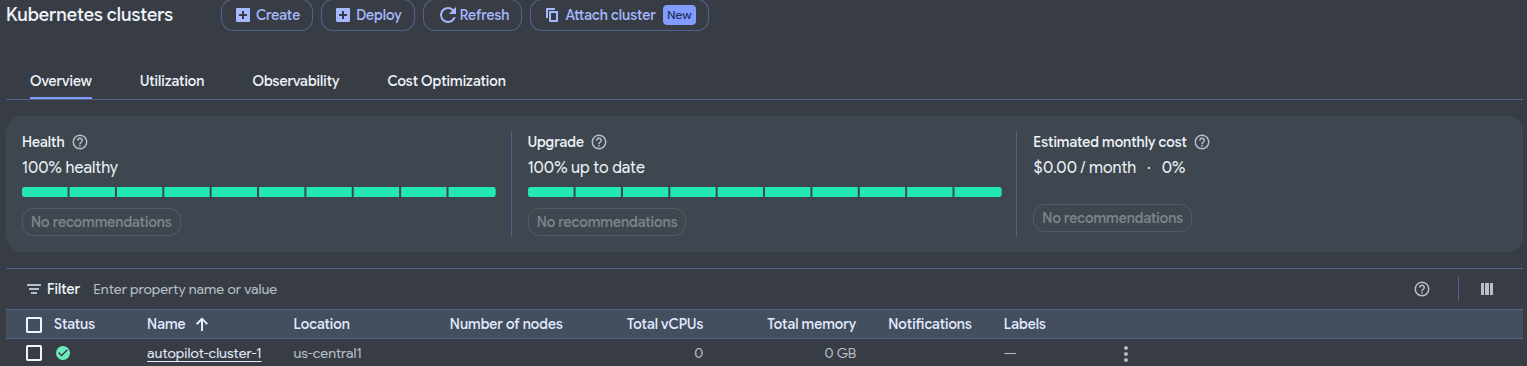
- Click the name of the affected GKE cluster.
-
In the Cluster details tab, locate
Control Plane Networking and click the
Edit icon.
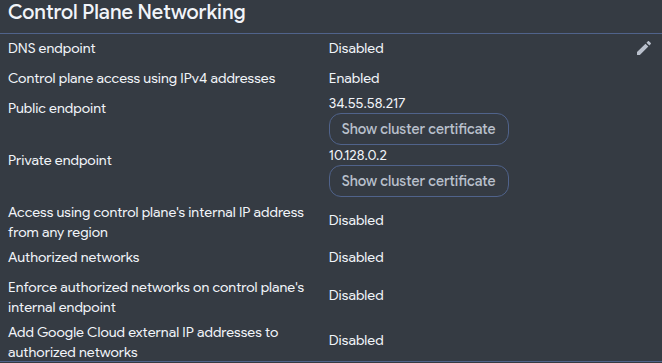
- To restrict access through the external IP endpoint, enable Enable authorized networks.
-
Click Add authorized network. Enter a name and
the trusted CIDR range, for example
203.0.113.0/24. Do not add0.0.0.0/0.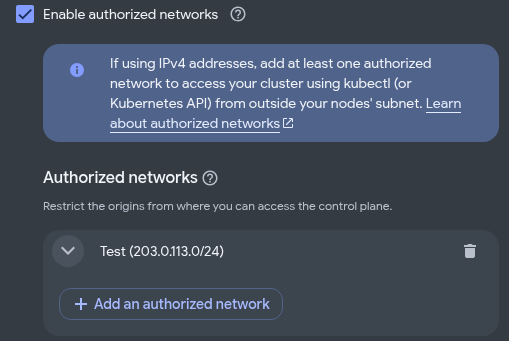
- Review the control plane endpoint settings. If public IP access is not required, disable access using the control plane's external IP address.
- Click Done, then click Save changes to apply the configuration.
Remediation via Google Cloud CLI
-
Open the Google Cloud Console and launch
Cloud Shell.

-
List the GKE clusters that have no private endpoint and no restricted authorized networks:
gcloud container clusters list --format=json | jq -r ' .[] | . as $c | select( ($c.controlPlaneEndpointsConfig.ipEndpointsConfig.enablePublicEndpoint // (($c.privateClusterConfig.enablePrivateEndpoint // false) | not)) ) | select( (($c.controlPlaneEndpointsConfig.ipEndpointsConfig.authorizedNetworksConfig.enabled // $c.masterAuthorizedNetworksConfig.enabled // false) | not) or (($c.controlPlaneEndpointsConfig.ipEndpointsConfig.authorizedNetworksConfig.cidrBlocks // $c.masterAuthorizedNetworksConfig.cidrBlocks // []) | map(.cidrBlock) | index("0.0.0.0/0")) != null or ($c.controlPlaneEndpointsConfig.ipEndpointsConfig.authorizedNetworksConfig.gcpPublicCidrsAccessEnabled // false) ) | [$c.name, $c.location] | @tsv' -
Limit access to the control plane to your trusted networks:
gcloud container clusters update <CLUSTER_NAME> \
--location <LOCATION> \
--enable-master-authorized-networks \
--master-authorized-networks <CIDR_1>,<CIDR_2> \
--no-enable-google-cloud-access
-
Or, to give the control plane a private endpoint only:
gcloud container clusters update <CLUSTER_NAME> \
--location <LOCATION> \
--enable-private-endpoint
-
Verify the settings:
gcloud container clusters describe <CLUSTER_NAME> \
--location <LOCATION> \
--format="yaml(controlPlaneEndpointsConfig)"
Replace
<CLUSTER_NAME>with the name of your GKE cluster,<LOCATION>with its region or zone, and<CIDR_1>,<CIDR_2>with your trusted ranges, for example203.0.113.0/24. Include your own IP address in the list so that you can still manage the cluster. The output must show either a private endpoint, or authorized networks that are enabled and do not include0.0.0.0/0.
Default Value
By default, the control plane of a GKE cluster has a public endpoint, and authorized networks are not enabled. Access still requires valid credentials, but the API server can be reached from any IP address.
Updated on 09 November, 2026