Other Articles
- Cloud SQL – Configure Private IP
- Cloud SQL – Monitor CPU Utilization
- Cloud SQL – Enable Deletion Protection
- Cloud SQL – Enable Disk Encryption
- Cloud SQL – Enable Automated Backups
- Cloud SQL – Enable Log Export
- Cloud SQL – Enforce Password Validation
- Cloud SQL – Protect From Internet Access
- Cloud SQL – Enforce Secure Transport
- Compute Engine – Block Project-Wide SSH Keys
- Compute Engine – Disable IP Forwarding
- Compute Engine – Disable Public IP Addresses
- Compute Engine – Disable Serial Port Access
- Compute Engine – Enable Confidential Computing
- Compute Engine – Enable OS Login
- Compute Engine – Enable Shielded VM
- Compute Engine – Restrict Default Service Account
- General – Deny Public Access to KMS Keys
- General – Enforce Duties Separation
- General – Enforce KMS Key Rotation
- General – Restrict Admin Roles on Service Accounts
- Cloud Run – Configure Timeout Settings
- Cloud Storage – Enable Bucket Encryption
- Cloud Storage – Enable Bucket Logging
- Cloud Storage – Enable Bucket Versioning
- Cloud Storage – Enforce Uniform Bucket-Level Access
- Cloud Storage – Restrict Public Access
- IAM Users – Enforce GCP-Managed Keys
- IAM Users – Rotate External User-Managed Service Account Keys
- GKE – Enable Private Nodes
- GKE – Restrict Control Plane Access
- GKE – Enable Workload Identity
- GKE – Disable Legacy ABAC
- GKE – Enable Network Policy
- GKE – Enable Shielded Nodes
- GKE – Enable Node Auto-Upgrade and Auto-Repair
- GKE Cluster – Enable Cluster Logging
- General – Enable Cloud Audit Logs
- General – Configure a Log Sink
- Cloud SQL – Enable High Availability
- Cloud SQL – Configure Maintenance Window
- Cloud Storage – Configure Bucket Retention or Lifecycle
- General – Enable Security Command Center
- Compute Engine – Enable Instance Deletion Protection
- VPC Firewall – Restrict Public SSH and RDP Access
- VPC Firewall – Restrict Public Database Access
- VPC Network – Avoid the Default Network
- VPC Network – Enable Subnet Flow Logs
General – Configure Log Bucket Retention
Secure Configuration Checks > GCP
This check ensures that every Cloud Logging bucket retains logs for at least 90 days. This gives you enough history for security investigations and audits.
Check Details
- Resource: Cloud Logging Bucket
- Check: Configure log bucket retention
- Risk: If logs are deleted too early, evidence is gone when you need it. Incidents and audit questions can no longer be answered.
Remediation via Google Cloud Console
-
Log in to the Google Cloud Console and navigate to
Monitoring > Logs Storage.
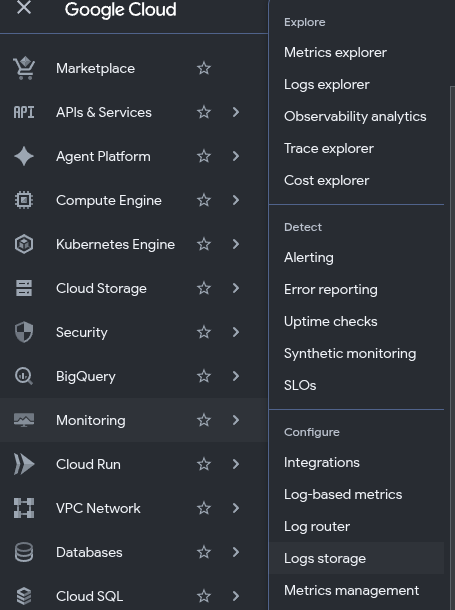
- In the Log buckets table, find each bucket where the Retention period is less than 90 days.
-
Click More actions next to the bucket and select Edit bucket.
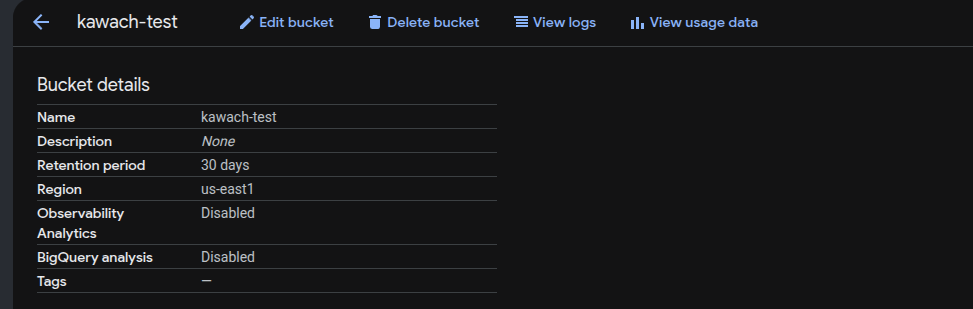
-
Set Retention period to 90 days or more.
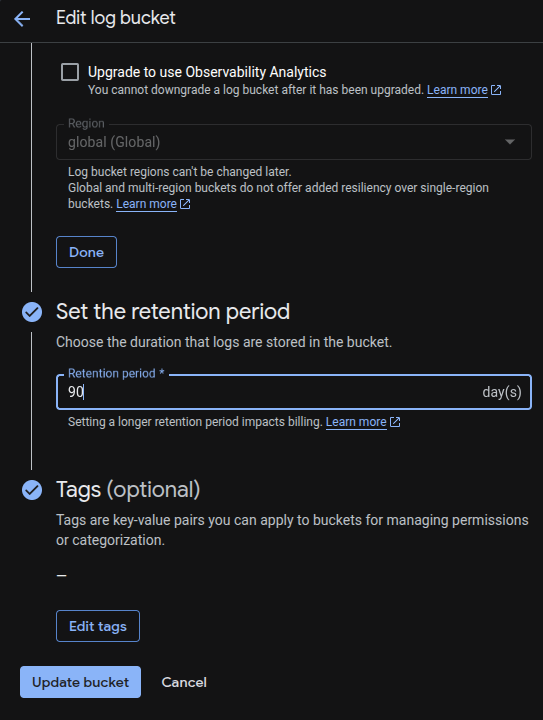
- Click Update bucket to apply the changes.
- Repeat steps 3 to 5 for every bucket with a shorter retention period.
Remediation via Google Cloud CLI
-
Open the Google Cloud Console and launch
Cloud Shell.

-
List the log buckets that keep logs for less than 90 days:
gcloud logging buckets list \
--filter="retentionDays<90" \
--format="table(name,retentionDays)"
-
Update the retention period of a bucket. Repeat for each bucket from the list:
gcloud logging buckets update <BUCKET_ID> \
--location=<LOCATION> \
--retention-days=90
Replace
<BUCKET_ID>with the bucket name, for example_Default, and<LOCATION>with its location, for exampleglobal. Use a higher number of days if your policy requires it. -
Verify the retention period:
gcloud logging buckets describe <BUCKET_ID> \
--location=<LOCATION> \
--format="value(retentionDays)"
Default Value
The _Default bucket and new user-defined buckets keep logs for 30 days.
The _Required bucket keeps logs for 400 days and this cannot be changed.
Keeping logs longer than 30 days adds storage cost.
Updated on 09 November, 2026