Other Articles
- Cloud SQL – Configure Private IP
- Cloud SQL – Monitor CPU Utilization
- Cloud SQL – Enable Deletion Protection
- Cloud SQL – Enable Disk Encryption
- Cloud SQL – Enable Automated Backups
- Cloud SQL – Enable Log Export
- Cloud SQL – Enforce Password Validation
- Cloud SQL – Protect From Internet Access
- Cloud SQL – Enforce Secure Transport
- Compute Engine – Block Project-Wide SSH Keys
- Compute Engine – Disable IP Forwarding
- Compute Engine – Disable Public IP Addresses
- Compute Engine – Disable Serial Port Access
- Compute Engine – Enable Confidential Computing
- Compute Engine – Enable OS Login
- Compute Engine – Enable Shielded VM
- Compute Engine – Restrict Default Service Account
- General – Deny Public Access to KMS Keys
- General – Enforce Duties Separation
- General – Enforce KMS Key Rotation
- General – Restrict Admin Roles on Service Accounts
- Cloud Run – Configure Timeout Settings
- Cloud Storage – Enable Bucket Encryption
- Cloud Storage – Enable Bucket Logging
- Cloud Storage – Enable Bucket Versioning
- Cloud Storage – Enforce Uniform Bucket-Level Access
- Cloud Storage – Restrict Public Access
- IAM Users – Enforce GCP-Managed Keys
- IAM Users – Rotate External User-Managed Service Account Keys
- GKE – Enable Private Nodes
- GKE – Restrict Control Plane Access
- GKE – Enable Workload Identity
- GKE – Disable Legacy ABAC
- GKE – Enable Network Policy
- GKE – Enable Shielded Nodes
- GKE – Enable Node Auto-Upgrade and Auto-Repair
- GKE Cluster – Enable Cluster Logging
- General – Enable Cloud Audit Logs
- General – Configure a Log Sink
- General – Configure Log Bucket Retention
- Cloud SQL – Enable High Availability
- Cloud SQL – Configure Maintenance Window
- Cloud Storage – Configure Bucket Retention or Lifecycle
- General – Enable Security Command Center
- Compute Engine – Enable Instance Deletion Protection
- VPC Firewall – Restrict Public SSH and RDP Access
- VPC Firewall – Restrict Public Database Access
- VPC Network – Avoid the Default Network
VPC Network – Enable Subnet Flow Logs
Secure Configuration Checks > GCP
This check ensures that VPC Flow Logs are enabled for every subnet. Flow logs record the network traffic that goes to and from your instances.
Check Details
- Resource: VPC Subnet
- Check: Enable subnet flow logs
- Risk: Without flow logs, you cannot review network traffic. Unusual connections and data theft are hard to detect and investigate.
Remediation via Google Cloud Console
-
Log in to the Google Cloud Console and navigate to
VPC network > VPC networks.

-
Open the Subnets in current project tab.
Select the checkbox next to the subnet for which Flow Logs need to be enabled.

- Click Manage flow logs in the toolbar, then click Add new configuration.
-
Under Configurations - Subnets, click
Add a configuration.
Enter a configuration name.
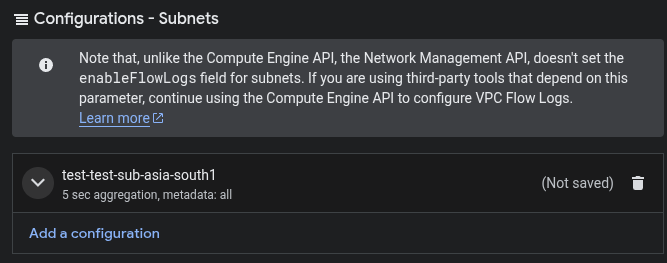
- Optionally configure the aggregation interval, log filtering and metadata annotations, then click Save.
- Repeat these steps for every subnet where Flow Logs are disabled.
Remediation via Google Cloud CLI
-
Open the Google Cloud Console and launch
Cloud Shell.

-
List the subnets that have flow logs turned off:
gcloud compute networks subnets list \
--filter="purpose=PRIVATE AND NOT logConfig.enable=true" \
--format="table(name,region.basename(),network.basename(),logConfig.enable)"
Subnets for load balancer proxies cannot have flow logs, so the list leaves them out.
-
Enable flow logs on the subnet:
gcloud compute networks subnets update <SUBNET_NAME> \
--region=<REGION> \
--enable-flow-logs
Replace
<SUBNET_NAME>with your subnet name and<REGION>with its region, for exampleus-central1. Repeat for each subnet from the list. -
Verify the flow log configuration:
gcloud compute networks subnets describe <SUBNET_NAME> \
--region=<REGION> \
--format="yaml(logConfig)"
The output must show
enable: true.
Default Value
By default, flow logs are turned off for new subnets. Flow logs add to your Cloud Logging cost. A lower sampling rate reduces the volume.
Updated on 09 November, 2026