Other Articles
- SQL Database – Enable Database Encryption
- SQL Database – Monitor CPU Utilization
- SQL Database – Monitor IO Utilization
- SQL Database – Monitor Memory Utilization
- SQL Database – Protect From Direct Internet Traffic
- SQL Server – Enable SQL Defender
- SQL Server – Require Microsoft Entra-Only Authentication
- SQL Server – Block Public Firewall Rules
- SQL Server – Enable Auditing
- Storage Account – Enable Storage Encryption
- Storage Account – Disable Blob Public Access
- Storage Account – Disable Cross-Tenant Replication
- Storage Account – Disable Public Network Access
- Storage Account – Enable Microsoft Defender
- Storage Account – Enable Secure Transfer
- Storage Account – Enforce Minimum TLS Version
- Storage Account – Enforce Network Access Rule
- Storage Account – Enforce Private Endpoint Access
- Storage Account – Enable Blob Soft Delete
- Storage Account – Enable Blob Versioning
- User – Enable Azure MFA
- App Service – Disable Remote Debugging
- App Service – Enable Defender
- App Service – Enable Entra ID Registration
- App Service – Enable HTTP2
- App Service – Enforce Latest TLS Version
- App Service – Enforce Secure FTPS State
- App Service – Monitor Server Errors
- App Service – Redirect HTTP to HTTPS
- Cosmos DB – Enable Backup
- Cosmos DB – Enable Microsoft Defender
- Cosmos DB – Monitor Latency
- Cosmos DB – Ensure Private Connectivity
- Cosmos DB for PostgreSQL – Monitor CPU Utilization
- Cosmos DB for PostgreSQL – Monitor IO Utilization
- Cosmos DB for PostgreSQL – Monitor Memory Utilization
- Cosmos DB for PostgreSQL – Protect From Direct Internet Traffic
- Cosmos DB – Protect From Direct Internet Traffic
- Cosmos DB – Restrict Firewall Network Access
- Virtual Machine – Enable Defender
- Virtual Machine – Protect From Direct Internet Traffic
- Key Vault – Enable Defender
- Key Vault – Ensure Vault Recoverable
- Key Vault – Require Private Endpoint Access
- Key Vault – Enforce Keys Expiration
- Key Vault – Enable Purge Protection
- Key Vault – Use Azure RBAC Authorization
- MySQL Flexible Server – Enable Audit Log Events Connection
- MySQL Flexible Server – Enable Audit Logs
- MySQL Flexible Server – Enforce Minimum TLS Version
- PostgreSQL Flexible Server – Configure Log File Retention
- PostgreSQL Flexible Server – Enable Connection Logging
- PostgreSQL Flexible Server – Enable Connection Throttling
- PostgreSQL Flexible Server – Enable Disconnection Logging
- PostgreSQL Flexible Server – Enable Log Checkpoints
- Network Security Group – Ensure Flow Logs Captured
- General – Enable Auto Provisioning Log Analytics
- General – Enable Security Notifications
- General – Set Additional Email Address
- Cosmos DB – Enforce Minimum TLS Version
- PostgreSQL Flexible Server – Enforce Minimum TLS Version
- Container Instance – Enforce Use of Private Virtual Networks
- Container Instance – Enforce Managed Identity Usage
SQL Databases – Enable Backup
Secure Configuration Checks > Azure
This check ensures that backups are configured for Azure SQL Databases. Azure takes automated backups of every database, and this check confirms that a backup retention period is set so data can be restored after accidental deletion, corruption or an outage.
Check Details
- Resource: SQL Database
- Check: Enable SQL Databases Backup
- Risk: If backups are not configured with an adequate retention period, data cannot be restored to an earlier point in time, increasing the risk of permanent data loss.
Remediation via Azure Portal
-
Log in to the Azure Portal.

-
Navigate to SQL servers and select the affected SQL server.
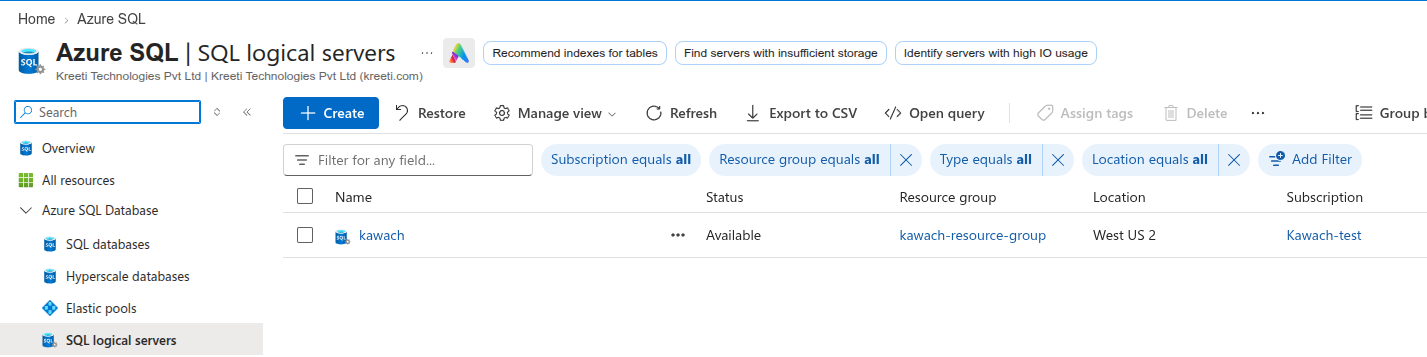
-
In the left menu, click on Backups under Data management.
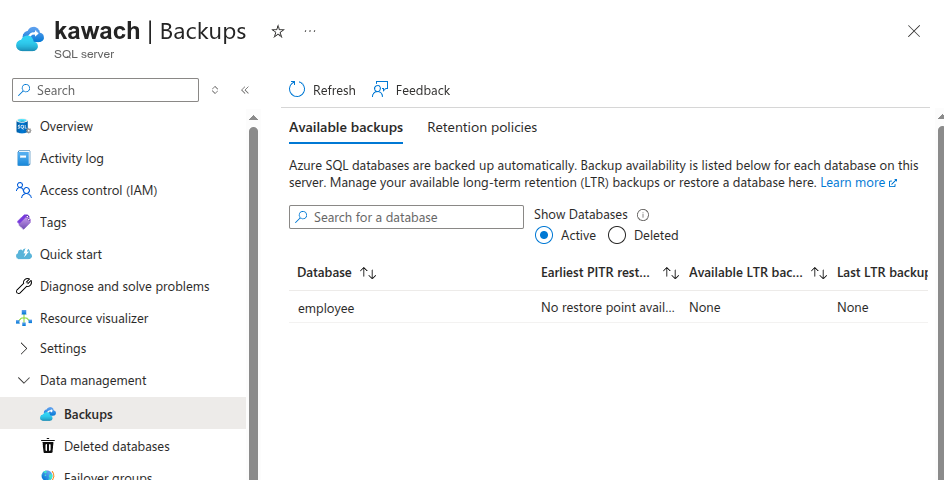
-
Open the Retention policies tab, select the affected database and click
Configure policies.
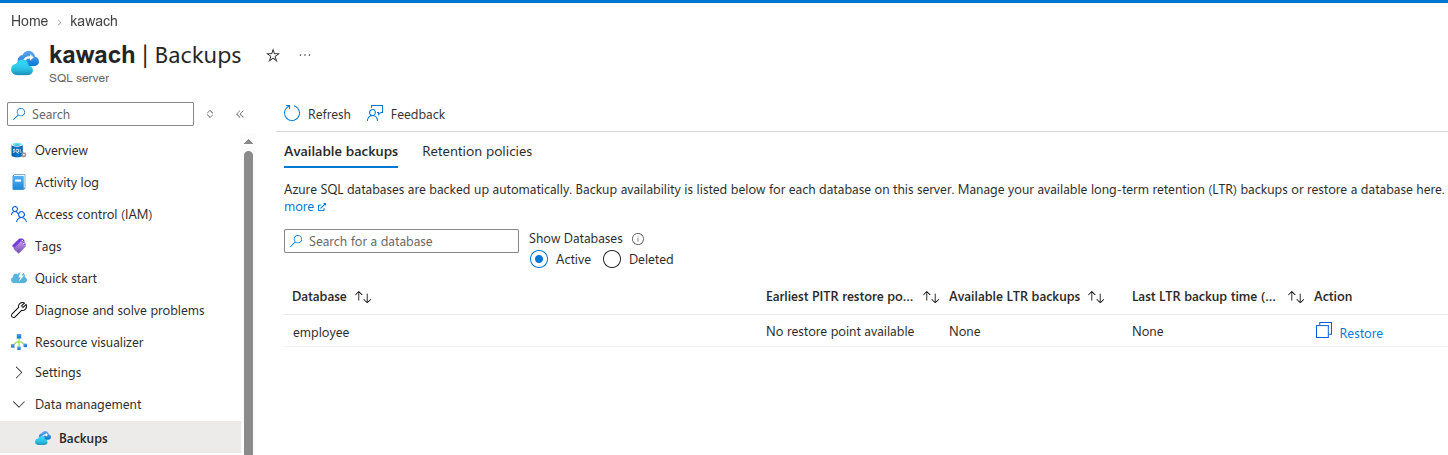
-
Under Point-in-time restore (PITR), set the retention period in days (for
example, 7 to 35 days). Optionally, configure long-term retention (weekly, monthly or
yearly) if you need to keep backups for longer.
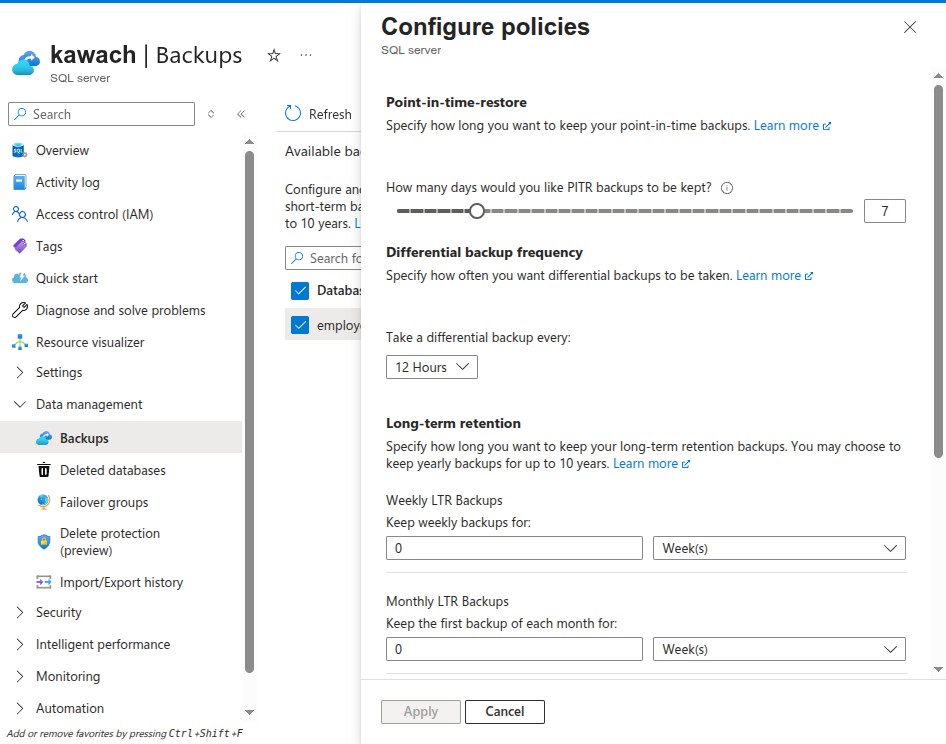
- Click Apply to save the changes.
Remediation via Azure CLI
-
Open Azure Cloud Shell from the Azure Portal or use a local
terminal with Azure CLI installed.

-
Run the following command to set the point-in-time restore retention period:
az sql db str-policy set \
--resource-group <resource-group-name> \
--server <sql-server-name> \
--name <database-name> \
--retention-days <retention-days>
Replace
<resource-group-name>,<sql-server-name>,<database-name>and<retention-days>with your actual values.
Updated on 03 November, 2026