Other Articles
- SQL Database – Enable Database Encryption
- SQL Databases – Enable Backup
- SQL Database – Monitor CPU Utilization
- SQL Database – Monitor IO Utilization
- SQL Database – Monitor Memory Utilization
- SQL Database – Protect From Direct Internet Traffic
- SQL Server – Enable SQL Defender
- SQL Server – Require Microsoft Entra-Only Authentication
- SQL Server – Block Public Firewall Rules
- SQL Server – Enable Auditing
- Storage Account – Enable Storage Encryption
- Storage Account – Disable Blob Public Access
- Storage Account – Disable Cross-Tenant Replication
- Storage Account – Disable Public Network Access
- Storage Account – Enable Microsoft Defender
- Storage Account – Enable Secure Transfer
- Storage Account – Enforce Minimum TLS Version
- Storage Account – Enforce Network Access Rule
- Storage Account – Enforce Private Endpoint Access
- Storage Account – Enable Blob Soft Delete
- Storage Account – Enable Blob Versioning
- User – Enable Azure MFA
- App Service – Disable Remote Debugging
- App Service – Enable Defender
- App Service – Enable Entra ID Registration
- App Service – Enable HTTP2
- App Service – Enforce Latest TLS Version
- App Service – Enforce Secure FTPS State
- App Service – Monitor Server Errors
- App Service – Redirect HTTP to HTTPS
- Cosmos DB – Enable Backup
- Cosmos DB – Enable Microsoft Defender
- Cosmos DB – Monitor Latency
- Cosmos DB – Ensure Private Connectivity
- Cosmos DB for PostgreSQL – Monitor CPU Utilization
- Cosmos DB for PostgreSQL – Monitor IO Utilization
- Cosmos DB for PostgreSQL – Monitor Memory Utilization
- Cosmos DB for PostgreSQL – Protect From Direct Internet Traffic
- Cosmos DB – Protect From Direct Internet Traffic
- Cosmos DB – Restrict Firewall Network Access
- Virtual Machine – Enable Defender
- Virtual Machine – Protect From Direct Internet Traffic
- Key Vault – Enable Defender
- Key Vault – Ensure Vault Recoverable
- Key Vault – Require Private Endpoint Access
- Key Vault – Enforce Keys Expiration
- Key Vault – Enable Purge Protection
- Key Vault – Use Azure RBAC Authorization
- MySQL Flexible Server – Enable Audit Log Events Connection
- MySQL Flexible Server – Enable Audit Logs
- MySQL Flexible Server – Enforce Minimum TLS Version
- PostgreSQL Flexible Server – Configure Log File Retention
- PostgreSQL Flexible Server – Enable Connection Logging
- PostgreSQL Flexible Server – Enable Connection Throttling
- PostgreSQL Flexible Server – Enable Disconnection Logging
- PostgreSQL Flexible Server – Enable Log Checkpoints
- Network Security Group – Ensure Flow Logs Captured
- General – Enable Auto Provisioning Log Analytics
- General – Enable Security Notifications
- General – Set Additional Email Address
- Cosmos DB – Enforce Minimum TLS Version
- PostgreSQL Flexible Server – Enforce Minimum TLS Version
- Container Instance – Enforce Managed Identity Usage
Container Instance – Enforce Use of Private Virtual Networks
Secure Configuration Checks > Azure
This check ensures that Azure container groups run inside a private Azure virtual network and use a private IP address, instead of being exposed to the internet through a public IP address.
Check Details
- Resource: Container Instance (Container Group)
- Check: Enforce Use of Private Virtual Networks
- Risk: A container group with a public IP address can be reached from the internet, which increases the risk of unauthorized access and attacks. Running it in a virtual network keeps it isolated and lets you control traffic with network security groups.
Before you start
- The network settings of a container group cannot be changed after it is created. To fix an existing container group, create a replacement in a virtual network and then delete the old one.
- The subnet must be delegated to Microsoft.ContainerInstance/containerGroups. A delegated subnet can contain only container groups. A subnet of at least /24 is recommended.
- Container groups in a virtual network need a NAT gateway for outbound internet access.
Remediation via Azure Portal
-
Log in to the Azure Portal.

-
Navigate to Container instances and find the container group that uses a public IP address.
Note its image, CPU, memory and other settings, because you will need them for the replacement.

- Click Create to create a new container instance with the same settings as the old one.
- On the Networking tab, set Networking type to Private.
-
Select the Virtual network and Subnet to use. The subnet must be delegated
to Azure Container Instances, or you can create a new one.
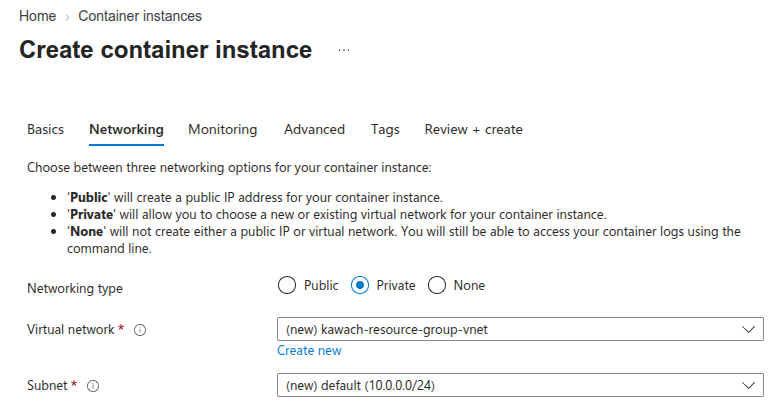
- Click Review + create, then click Create.
- After the new container group is running, delete the old container group that uses the public IP address.
Remediation via Azure CLI
-
Open Azure Cloud Shell from the Azure Portal or use a local
terminal with Azure CLI installed.

-
Run the following command to delegate an existing subnet to Azure Container Instances:
az network vnet subnet update \
--resource-group <resource-group-name> \
--vnet-name <vnet-name> \
--name <subnet-name> \
--delegations Microsoft.ContainerInstance/containerGroups
-
Run the following command to create the container group in the virtual network:
az container create \
--resource-group <resource-group-name> \
--name <new-container-group-name> \
--image <image> \
--vnet <vnet-name> \
--subnet <subnet-name>
-
Run the following command to delete the old container group that uses a public IP address:
az container delete \
--resource-group <resource-group-name> \
--name <old-container-group-name>
Replace
<resource-group-name>,<vnet-name>,<subnet-name>,<new-container-group-name>,<image>and<old-container-group-name>with your actual values.
Updated on 06 November, 2026