Other Articles
- How to Integrate Kawach with Asana?
- How to Integrate Kawach with Atlassian?
- How to Integrate Kawach with AWS?
- How to Integrate Kawach with GCP?
- How to Integrate Kawach with GitHub?
- How to Integrate Kawach with GitLab?
- How to Integrate Kawach with Google Workspace?
- How to Integrate Kawach with Linear?
- How to Integrate Kawach with Microsoft Entra ID?
- How to Integrate Kawach with Sentry?
- How to Integrate Kawach with Slack?
- How to integrate Kawach with Supabase?
- Why Integrate with Identity and Workspace Tools?
How to Integrate Kawach with Vercel?

Overview
This article explains how to integrate Vercel with Kawach to enable centralized compliance monitoring across your Vercel team. Once connected, Kawach can monitor your Vercel team in read-only mode and surface relevant findings as part of your compliance and risk workflows.
Prerequisites
Before starting the integration, ensure the following:
- Your organization has an active Vercel account.
- You have access to the Vercel team you want Kawach to monitor.
- You have sufficient privileges within the Vercel team to authorize third-party integrations.
- You have access to your organization's Kawach account with permissions to manage integrations.
What Kawach Accesses
Once connected, Kawach can:
- Read Vercel team information
- Access installation and team-level data with Read permission scope
- Monitor team membership and access-related signals relevant to compliance and operational risk
Your Vercel projects and deployments remain unchanged during monitoring.
Steps to Integrate Vercel with Kawach
Step 1: Navigate to Integrations in Kawach
- Log in to your Kawach account.
- Go to the Integrations tab.
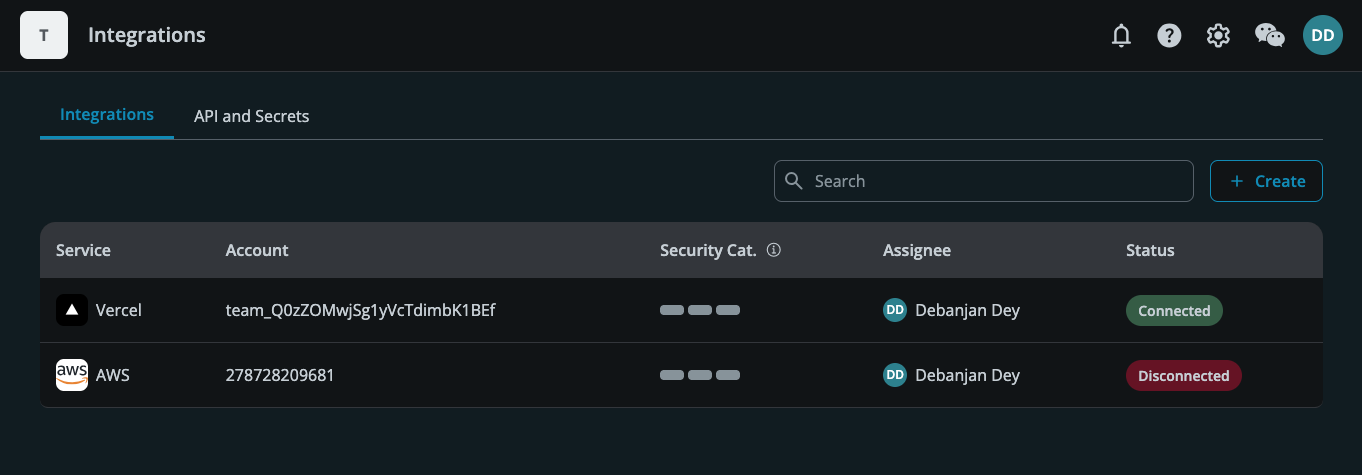
- Click Create.
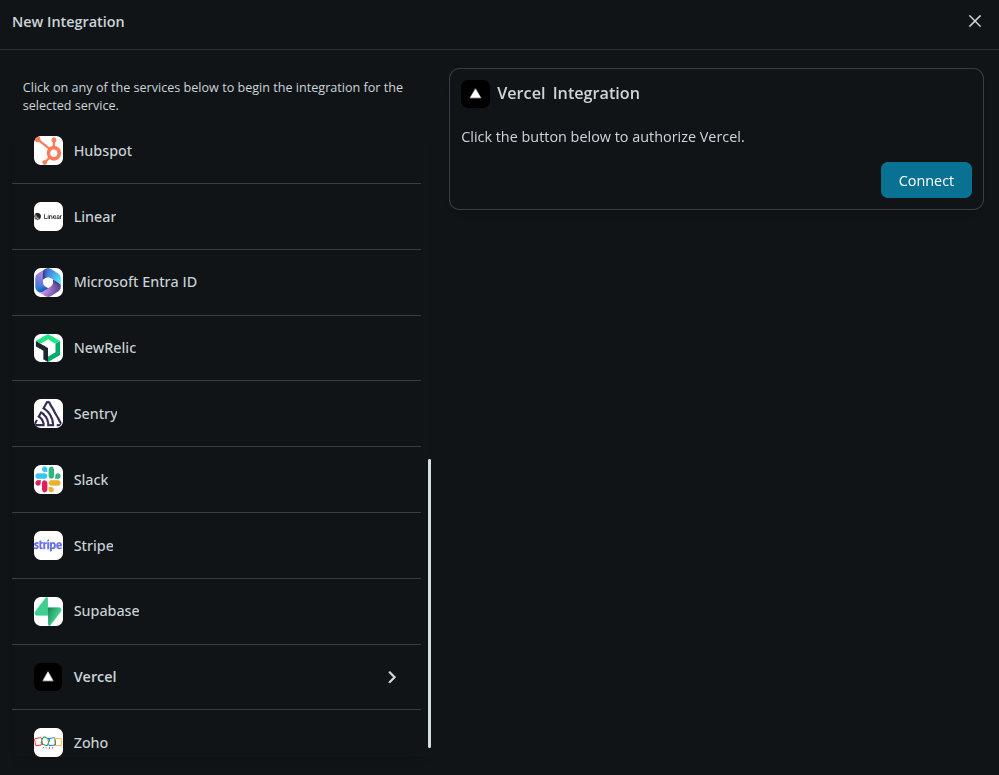
- Locate Vercel from the list of available integrations.
- Click Connect.
Step 2: Authorize Kawach in Vercel
- You will be redirected to the Connect Account page in Vercel.
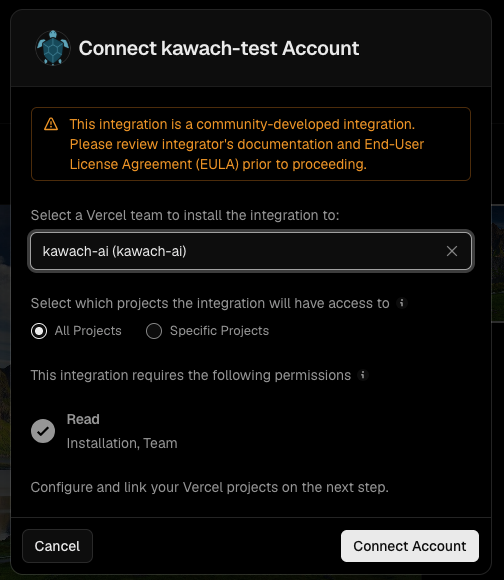
- Select the Vercel team you want to install the integration to.
- Select which projects the integration will have access to: All Projects or Specific Projects.
- Review the requested permissions. Kawach requests Read access to Installation, Team.
- Click Connect Account to grant access.
Step 3: Confirm Integration
After authorization:
- You will be redirected to vercel configuration page , Just click on the configure button.
- The Vercel integration will appear under Integrations with a
Connected status.
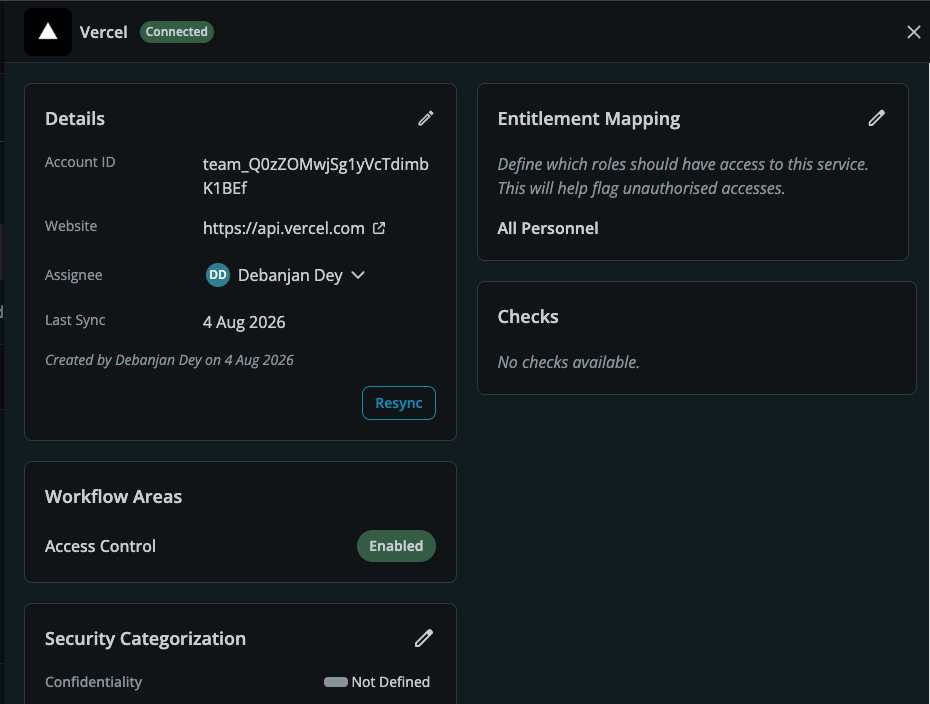
- Kawach will begin syncing account details, including Account ID, website, and sync timestamps.
After the Integration
Once the integration is complete:
- The Vercel account is visible in Kawach.
- You can assign an owner to the integration and resync data manually at any time using the Resync option.
- Workflow areas such as Access Control can be enabled for the integration.
- Entitlement mapping can be configured to define which roles should have access to this service, helping flag unauthorized access.
- Teams get centralized visibility into their Vercel account without switching tools.
This setup supports ongoing compliance by ensuring deployment and access-related evidence is consistently available.
Troubleshooting
-
Authorization failed
Ensure you are signing in with the correct Vercel team account and have sufficient privileges to authorize third-party integrations.
-
Team not visible
Verify that you selected the correct team from the dropdown during authorization.
-
Data not syncing
Allow a few minutes after setup. Use the Resync option, or try reconnecting the integration if issues persist.
Updated on 05 August, 2026