Other Articles
- How to Integrate Kawach with Asana?
- How to Integrate Kawach with AWS?
- How to Integrate Kawach with GCP?
- How to Integrate Kawach with GitHub?
- How to Integrate Kawach with GitLab?
- How to Integrate Kawach with Google Workspace?
- How to Integrate Kawach with Linear?
- How to Integrate Kawach with Microsoft Entra ID?
- How to Integrate Kawach with Sentry?
- How to Integrate Kawach with Slack?
- How to integrate Kawach with Supabase?
- Why Integrate with Identity and Workspace Tools?
- How to Integrate Kawach with Vercel?

Overview
This article explains how to integrate Atlassian Cloud with Kawach to enable centralized compliance monitoring across your Jira and Confluence environments. Once connected, Kawach can monitor users, projects, and issues at the organization level and surface relevant findings as part of your compliance and risk workflows.
This integration helps ensure that user access, project activity, and work artifacts across Jira are consistently tracked and available for audits, reviews, and internal assessments.
Prerequisites
Before starting the integration, ensure the following:
- You have an active Atlassian Cloud organization.
- You have Organization Administrator access or sufficient privileges to authorize third-party applications.
- You have access to your organization’s Kawach account with permissions to manage integrations.
- You know which Jira instances belong to the Atlassian organization you want Kawach to monitor.
What Kawach Accesses
Once connected, Kawach can:
- Read user profiles, including usernames, email addresses, and profile images in Jira and Confluence
- Read Jira projects, issues, attachments, worklogs, and search results
- Read general account and organization information to support identity and access governance
Steps to Integrate Atlassian Cloud with Kawach
Step 1: Navigate to Integrations in Kawach
- Log in to your Kawach account.
- Go to Settings.
- Select the Integrations tab.
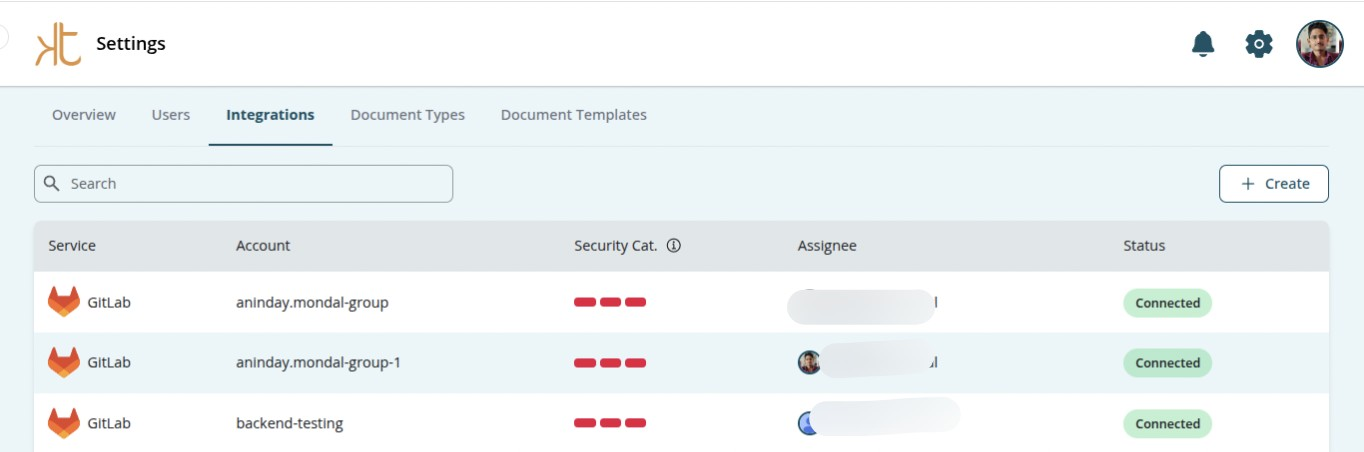
- Click Create.
- Locate Atlassian from the list of available integrations.
- Click Connect.
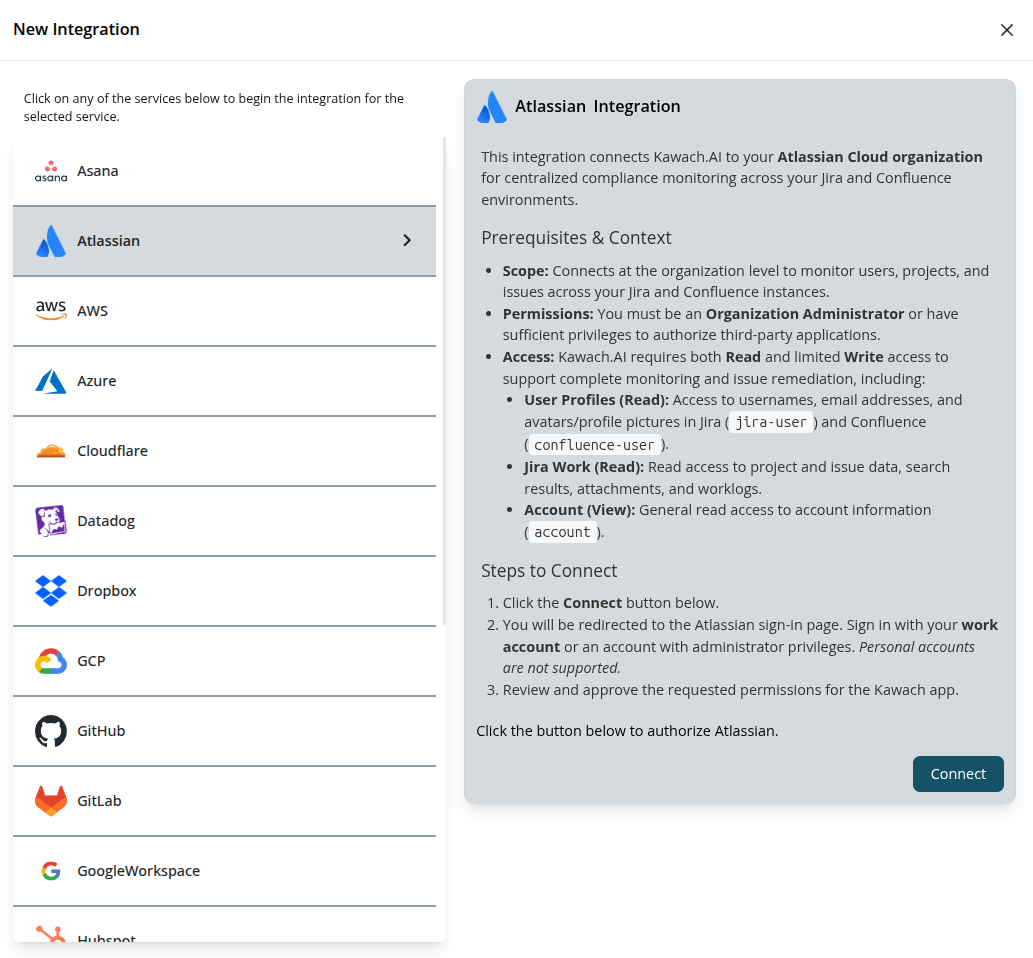
Step 2: Authorize Kawach in Atlassian
- You will be redirected to the Atlassian sign-in page.
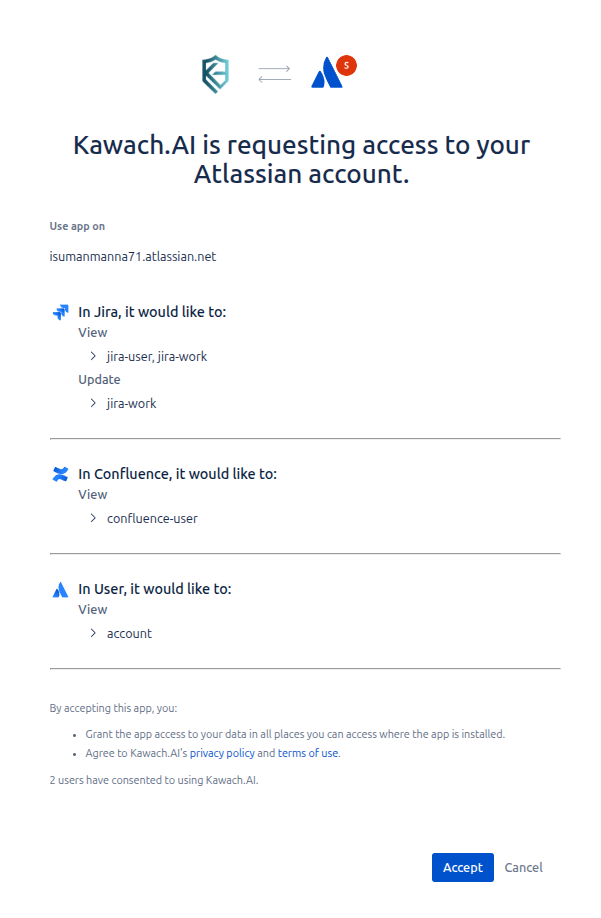
- Click the Accept button.
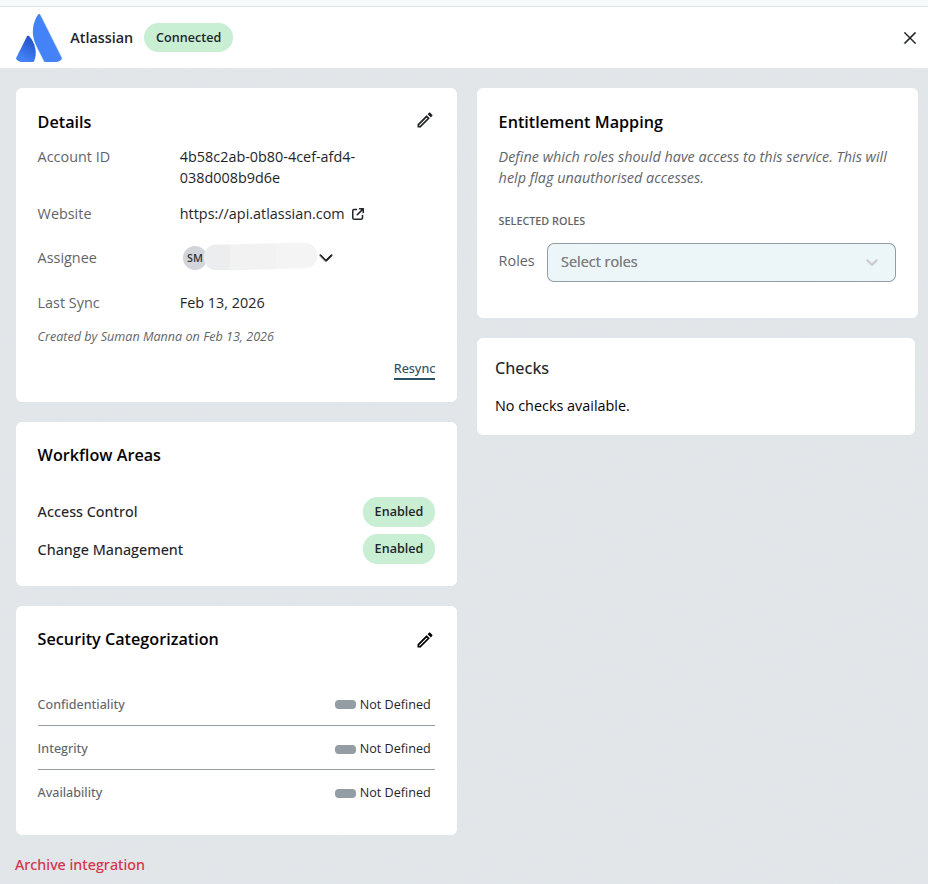
- It will redirect to the integration page of Kawach and your Atlassian account is successfully integrated
with Kawach.
Step 3: Confirm Organization Connection
After authorization:
- You will be redirected back to Kawach.
- Kawach will automatically detect the Jira instances associated with the organization.
- Confirm the connection to begin data synchronization.
Kawach will start syncing users, projects, and issues across the organization after a few minutes.
After the Integration
Once the integration is complete:
- Jira environments are continuously monitored within Kawach.
- Relevant findings can be surfaced as part of compliance workflows.
- Teams get centralized visibility into work activity and access governance without switching tools.
Troubleshooting
-
Authorization failed
Ensure you are logged into the correct Atlassian organization and have Organization Administrator access.
-
Projects or spaces not visible
Verify that the Jira projects and Confluence spaces belong to the authorized Atlassian Cloud organization.
-
Data not syncing
Allow a few minutes after setup. If issues persist, try reconnecting the integration.