Other Articles
- SQL Database – Enable Database Encryption
- SQL Server – Enable SQL Defender
- SQL Database – Monitor CPU Utilization
- SQL Database – Monitor IO Utilization
- SQL Database – Monitor Memory Utilization
- SQL Database – Protect From Direct Internet Traffic
- Storage Account – Enable Storage Encryption
- Storage Account – Disable Blob Public Access
- Storage Account – Disable Cross-Tenant Replication
- Storage Account – Disable Public Network Access
- Storage Account – Enable Microsoft Defender
- Storage Account – Enable Secure Transfer
- Storage Account – Enforce Minimum TLS Version
- Storage Account – Enforce Network Access Rule
- Storage Account – Enforce Private Endpoint Access
- User – Enable Azure MFA
- App Service – Disable Remote Debugging
- App Service – Enable Entra ID Registration
- App Service – Enable HTTP2
- App Service – Enforce Latest TLS Version
- App Service – Enforce Secure FTPS State
- App Service – Monitor Server Errors
- App Service – Redirect HTTP to HTTPS
- Cosmos DB – Enable Backup
- Cosmos DB – Enable Microsoft Defender
- Cosmos DB – Monitor Latency
- Cosmos DB – Ensure Private Connectivity
- Cosmos DB for PostgreSQL – Monitor CPU Utilization
- Cosmos DB for PostgreSQL – Monitor IO Utilization
- Cosmos DB for PostgreSQL – Monitor Memory Utilization
- Cosmos DB for PostgreSQL – Protect From Direct Internet Traffic
- Cosmos DB – Protect From Direct Internet Traffic
- Cosmos DB – Restrict Firewall Network Access
- Virtual Machine – Enable Defender
- Virtual Machine – Protect From Direct Internet Traffic
- Key Vault – Enable Defender
- Key Vault – Ensure Vault Recoverable
- Key Vault – Require Private Endpoint Access
- MySQL Flexible Server – Enable Audit Log Events Connection
- MySQL Flexible Server – Enable Audit Logs
- MySQL Flexible Server – Enforce Minimum TLS Version
- PostgreSQL Flexible Server – Configure Log File Retention
- PostgreSQL Flexible Server – Enable Connection Logging
- PostgreSQL Flexible Server – Enable Connection Throttling
- PostgreSQL Flexible Server – Enable Disconnection Logging
- PostgreSQL Flexible Server – Enable Log Checkpoints
- Network Security Group – Ensure Flow Logs Captured
- General – Enable Auto Provisioning Log Analytics
- General – Enable Security Notifications
- General – Set Additional Email Address
App Service – Enable Defender
This check ensures that Microsoft Defender is enabled for Azure App Services to provide advanced threat protection, vulnerability assessment, and runtime security monitoring.
Check Details
- Resource: Azure App Service (Web App)
- Check: Ensure Microsoft Defender for App Services is Enabled
- Risk: If Defender is not enabled, web applications may lack advanced threat detection, vulnerability scanning, and protection against common attack vectors such as code injection and exploitation attempts.
Remediation via Azure Portal
-
Log in to the Azure Portal.

-
Navigate to App Services and select the affected Web App.

-
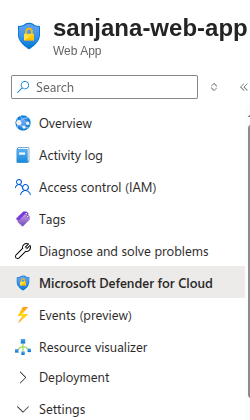
Navigate to Microsoft Defender for Cloud.
-
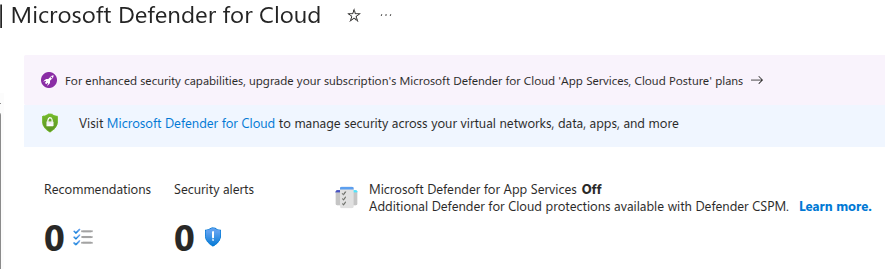
Click Microsoft Defender for Cloud link.
-
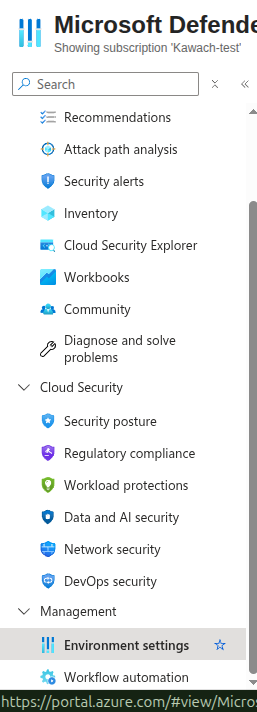
In the left-hand menu, select Environment settings.
-
Select the appropriate Subscription.

-
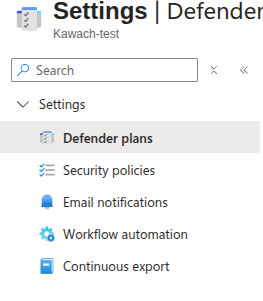
Under Defender plans, locate App Services.
-
Toggle the plan to On (Standard).

- Click Save to apply the changes.
Remediation via Azure CLI
-
Open Azure Cloud Shell or a local terminal with Azure CLI installed.

-
Enable Microsoft Defender for App Services (Standard tier):
az security pricing create \
  --name AppServices \
  --tier standard
-
Verify that Defender is enabled:
az security pricing show \
  --name AppServices
Ensure that the pricingTier value in the output is set to Standard.