Other Articles
- SQL Database – Enable Database Encryption
- SQL Server – Enable SQL Defender
- SQL Database – Monitor CPU Utilization
- SQL Database – Monitor IO Utilization
- SQL Database – Monitor Memory Utilization
- Storage Account – Enable Storage Encryption
- Storage Account – Disable Blob Public Access
- Storage Account – Disable Cross-Tenant Replication
- Storage Account – Disable Public Network Access
- Storage Account – Enable Microsoft Defender
- Storage Account – Enable Secure Transfer
- Storage Account – Enforce Minimum TLS Version
- Storage Account – Enforce Network Access Rule
- Storage Account – Enforce Private Endpoint Access
- User – Enable Azure MFA
- App Service – Disable Remote Debugging
- App Service – Enable Defender
- App Service – Enable Entra ID Registration
- App Service – Enable HTTP2
- App Service – Enforce Latest TLS Version
- App Service – Enforce Secure FTPS State
- App Service – Monitor Server Errors
- App Service – Redirect HTTP to HTTPS
- Cosmos DB – Enable Backup
- Cosmos DB – Enable Microsoft Defender
- Cosmos DB – Monitor Latency
- Cosmos DB – Ensure Private Connectivity
- Cosmos DB for PostgreSQL – Monitor CPU Utilization
- Cosmos DB for PostgreSQL – Monitor IO Utilization
- Cosmos DB for PostgreSQL – Monitor Memory Utilization
- Cosmos DB for PostgreSQL – Protect From Direct Internet Traffic
- Cosmos DB – Protect From Direct Internet Traffic
- Cosmos DB – Restrict Firewall Network Access
- Virtual Machine – Enable Defender
- Virtual Machine – Protect From Direct Internet Traffic
- Key Vault – Enable Defender
- Key Vault – Ensure Vault Recoverable
- Key Vault – Require Private Endpoint Access
- MySQL Flexible Server – Enable Audit Log Events Connection
- MySQL Flexible Server – Enable Audit Logs
- MySQL Flexible Server – Enforce Minimum TLS Version
- PostgreSQL Flexible Server – Configure Log File Retention
- PostgreSQL Flexible Server – Enable Connection Logging
- PostgreSQL Flexible Server – Enable Connection Throttling
- PostgreSQL Flexible Server – Enable Disconnection Logging
- PostgreSQL Flexible Server – Enable Log Checkpoints
- Network Security Group – Ensure Flow Logs Captured
- General – Enable Auto Provisioning Log Analytics
- General – Enable Security Notifications
- General – Set Additional Email Address
SQL Database – Protect From Direct Internet Traffic
This check ensures that Azure SQL Servers and Databases are not exposed directly to the public internet. Restricting public access reduces the attack surface and protects databases from unauthorized access and external threats.
Check Details
- Resource: SQL Server / SQL Database
- Check: Protect SQL Databases From Direct Internet Traffic
- Risk: Publicly accessible SQL databases are vulnerable to brute-force attacks, data breaches, and compliance violations.
Remediation via Azure Portal
-
Log in to the Azure Portal.

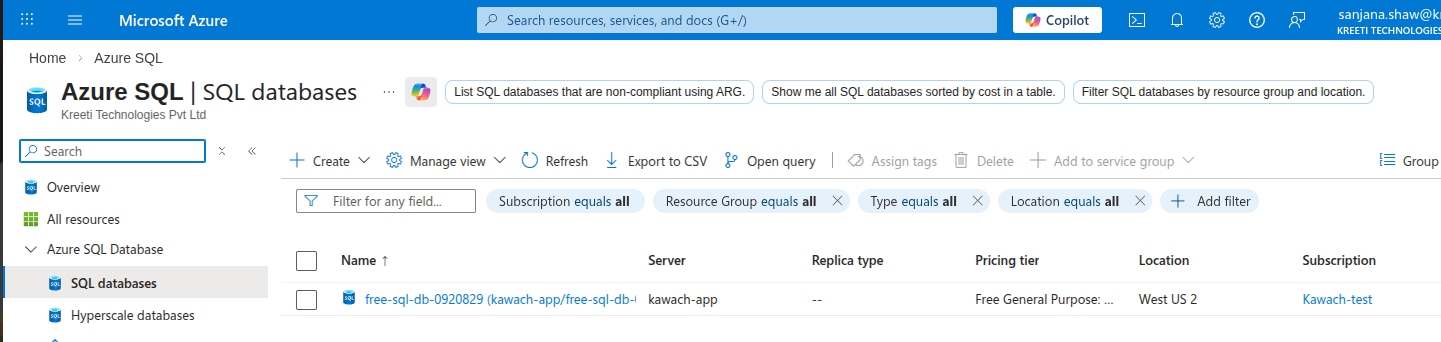
- Navigate to Azure SQL Database.
-
Under SQL databases, choose the affected database.
-
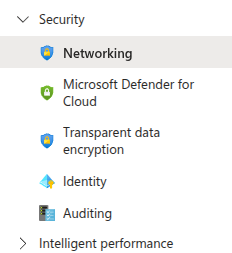
From the left-hand menu, go to Networking
under Security.
-
Under Public network access, Disable to block all public access.
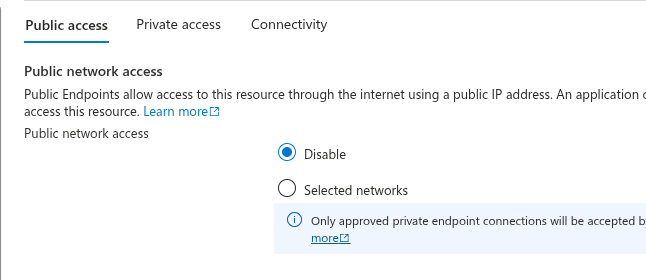
- Click Save to apply the configuration.
Remediation via Azure CLI
-
Open Azure Cloud Shell or use a local terminal with Azure CLI installed.

-
Disable public network access for the SQL Server:
az sql server update \
 --name <sql-server-name> \
 --resource-group <resource-group-name> \
 --public-network-access Disabled
Replace <sql-server-name> and
<resource-group-name> with your actual values.
This ensures SQL databases are protected from direct internet traffic.