Other Articles
- Cloud SQL – Configure Private IP
- Cloud SQL – Monitor CPU Utilization
- Cloud SQL – Enable Deletion Protection
- Cloud SQL – Enable Disk Encryption
- Cloud SQL – Enable Automated Backups
- Cloud SQL – Enable Log Export
- Cloud SQL – Enforce Password Validation
- Cloud SQL – Protect From Internet Access
- Cloud SQL – Enforce Secure Transport
- Compute Engine – Block Project-Wide SSH Keys
- Compute Engine – Disable IP Forwarding
- Compute Engine – Disable Public IP Addresses
- Compute Engine – Disable Serial Port Access
- Compute Engine – Enable Confidential Computing
- Compute Engine – Enable OS Login
- Compute Engine – Enable Shielded VM
- Compute Engine – Restrict Default Service Account
- General – Deny Public Access to KMS Keys
- General – Enforce Duties Separation
- General – Enforce KMS Key Rotation
- General – Restrict Admin Roles on Service Accounts
- Cloud Run – Configure Timeout Settings
- Cloud Storage – Enable Bucket Encryption
- Cloud Storage – Enable Bucket Logging
- Cloud Storage – Enable Bucket Versioning
- Cloud Storage – Enforce Uniform Bucket-Level Access
- Cloud Storage – Restrict Public Access
- IAM Users – Enforce GCP-Managed Keys
IAM Users – Rotate External User-Managed Service Account Keys
This check ensures that external (user-managed) service account keys are rotated regularly. Any user-managed key older than 90 days must be deleted and replaced with a newly generated key to reduce the risk of credential compromise.
Check Details
- Resource: Service Accounts
- Check: Rotate external (user-managed) service account keys
- Risk: User-managed service account keys that are not rotated regularly may be exposed, reused, or compromised, leading to unauthorized access to GCP resources.
Remediation via Google Cloud Console
-
Go to APIs & Services → Credentials.

- In the Service Account Keys section, identify all external (user-managed) service account keys.
-
For every external (user-managed) service account key with a creation date
greater than or equal to the past 90 days, click the
Delete (bin) icon to delete the key.

-
To create a new external (user-managed) service account key, click
Create Credentials and select
Service Account Key.
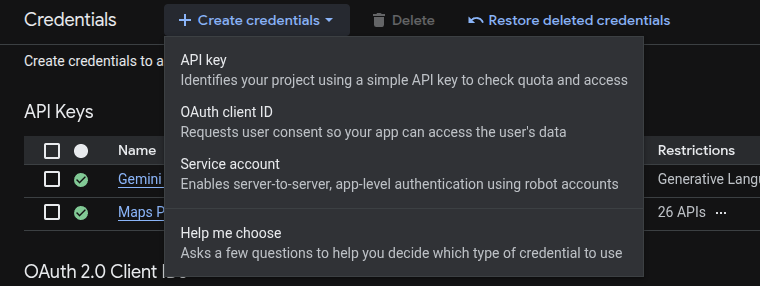
- Choose the required Service Account from the drop-down list.
- Select the desired key type format (JSON or P12).
-
Click Create. The private key will be downloaded.
Store it securely.
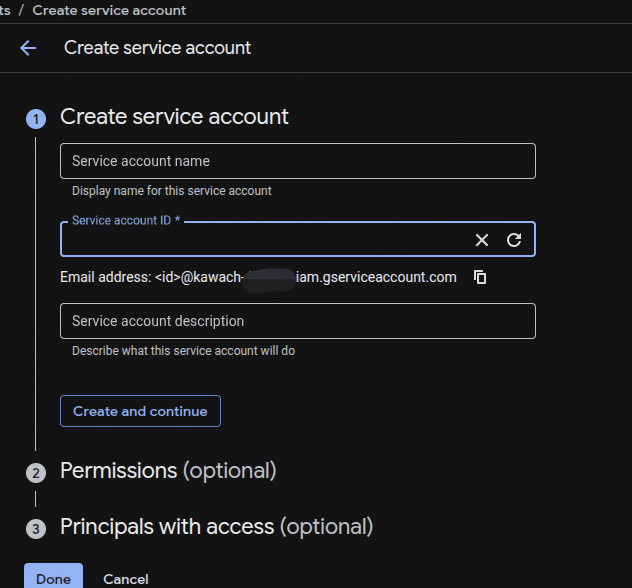
- Click Close if prompted.
- After redirection to the APIs & Services → Credentials page, make a note of the new key ID displayed in the Service Account Keys section.
Default Value
GCP does not provide an automation option for external (user-managed) service account key rotation. Keys must be rotated manually by deleting old keys and creating new ones.