Other Articles
- Cloud SQL – Configure Private IP
- Cloud SQL – Monitor CPU Utilization
- Cloud SQL – Enable Deletion Protection
- Cloud SQL – Enable Disk Encryption
- Cloud SQL – Enable Automated Backups
- Cloud SQL – Enable Log Export
- Cloud SQL – Enforce Password Validation
- Cloud SQL – Protect From Internet Access
- Cloud SQL – Enforce Secure Transport
- Compute Engine – Block Project-Wide SSH Keys
- Compute Engine – Disable IP Forwarding
- Compute Engine – Disable Public IP Addresses
- Compute Engine – Disable Serial Port Access
- Compute Engine – Enable Confidential Computing
- Compute Engine – Enable OS Login
- Compute Engine – Enable Shielded VM
- Compute Engine – Restrict Default Service Account
- General – Deny Public Access to KMS Keys
- General – Enforce Duties Separation
- General – Enforce KMS Key Rotation
- General – Restrict Admin Roles on Service Accounts
- Cloud Run – Configure Timeout Settings
- Cloud Storage – Enable Bucket Logging
- Cloud Storage – Enable Bucket Versioning
- Cloud Storage – Enforce Uniform Bucket-Level Access
- Cloud Storage – Restrict Public Access
- IAM Users – Enforce GCP-Managed Keys
- IAM Users – Rotate External User-Managed Service Account Keys
Cloud Storage – Enable Bucket Encryption
This check ensures that Cloud Storage buckets are encrypted using either Google-managed keys or customer-managed keys (CMEK). Encryption helps protect data at rest and ensures compliance with security requirements.
Check Details
- Resource: Storage
- Check: Enable bucket encryption
- Risk: Buckets without encryption are vulnerable to data breaches and unauthorized access, compromising confidentiality.
Remediation via Google Cloud Console
-
Log in to the Google Cloud Console and navigate to
Buckets.

- Click on the name of the affected Cloud Storage bucket.
- Select the Configuration tab near the top of the page.
- Locate the Encryption section and click Edit.
-
Choose an encryption option:
- Google-managed key — automatically managed by Google (default).
- Customer-managed key (CMEK) — select a key from Cloud Key Management Service (KMS) for full control.
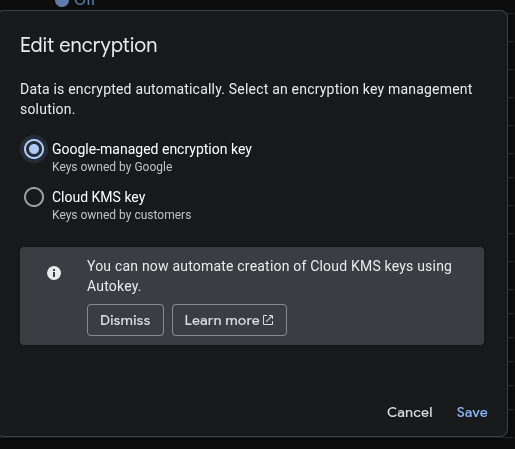
- Click Save to apply changes.
Remediation via Google Cloud CLI
-
Open the Google Cloud Console and launch
Cloud Shell.
-
Use the following command to enable Google-managed encryption:
gsutil encryption set google-managed gs://<BUCKET_NAME> -
Use the following command to enable Customer-managed encryption (CMEK):
gsutil encryption set kms://projects/<PROJECT_ID>/locations/<LOCATION>/keyRings/<KEY_RING>/cryptoKeys/<KEY_NAME> gs://<BUCKET_NAME>
Replace <BUCKET_NAME> with your bucket name, and for CMEK, replace
<PROJECT_ID>, <LOCATION>, <KEY_RING>,
and <KEY_NAME> with your KMS key details.
Default Value
By default, Cloud Storage buckets use Google-managed encryption keys. No action is required for basic encryption, but using customer-managed keys (CMEK) provides additional control and compliance benefits.