Other Articles
- Cloud SQL – Configure Private IP
- Cloud SQL – Monitor CPU Utilization
- Cloud SQL – Enable Deletion Protection
- Cloud SQL – Enable Disk Encryption
- Cloud SQL – Enable Automated Backups
- Cloud SQL – Enable Log Export
- Cloud SQL – Enforce Password Validation
- Cloud SQL – Protect From Internet Access
- Cloud SQL – Enforce Secure Transport
- Compute Engine – Block Project-Wide SSH Keys
- Compute Engine – Disable IP Forwarding
- Compute Engine – Disable Public IP Addresses
- Compute Engine – Disable Serial Port Access
- Compute Engine – Enable Confidential Computing
- Compute Engine – Enable OS Login
- Compute Engine – Restrict Default Service Account
- General – Deny Public Access to KMS Keys
- General – Enforce Duties Separation
- General – Enforce KMS Key Rotation
- General – Restrict Admin Roles on Service Accounts
- Cloud Run – Configure Timeout Settings
- Cloud Storage – Enable Bucket Encryption
- Cloud Storage – Enable Bucket Logging
- Cloud Storage – Enable Bucket Versioning
- Cloud Storage – Enforce Uniform Bucket-Level Access
- Cloud Storage – Restrict Public Access
- IAM Users – Enforce GCP-Managed Keys
- IAM Users – Rotate External User-Managed Service Account Keys
Compute Engine – Enable Shielded VM
This check ensures that Compute Engine VM instances are launched with Shielded VM enabled, including vTPM and integrity monitoring, to protect against boot-level and kernel-level malware.
Check Details
- Resource: Compute Engine VM Instance
- Check: Enable Shielded VM
- Risk: VM instances without Shielded VM are vulnerable to boot-level and kernel-level malware, rootkits, and unauthorized modifications during the boot process.
Remediation via Google Cloud Console
-
Go to the VM instances page:
https://console.cloud.google.com/compute/instances
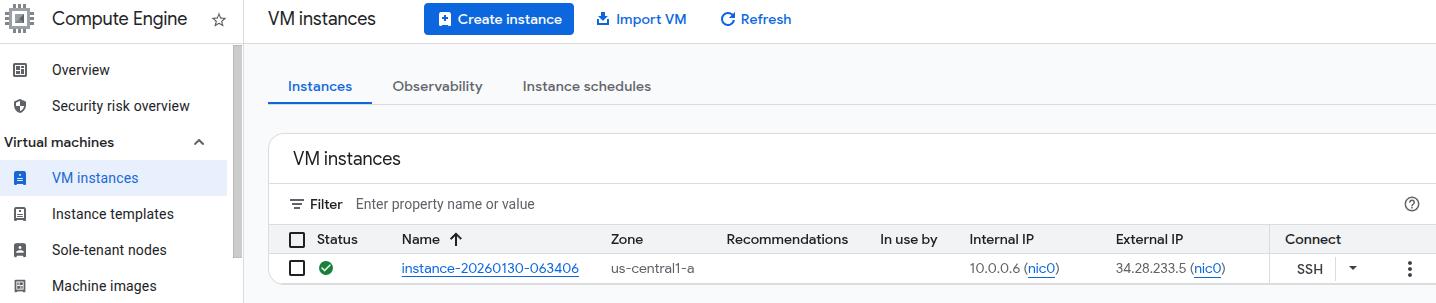
- Click on the affected VM instance name to open its details page.
- Click STOP to stop the instance.
-
Once the instance is stopped, click EDIT.

-
Scroll to the Shielded VM section and enable:
- Turn on vTPM
- Turn on Integrity Monitoring
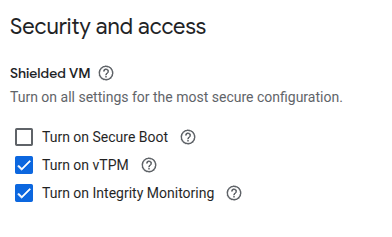
- (Optional) If the instance does not use any custom or unsigned drivers, also enable Turn on Secure Boot.
- Click Save, then click START to restart the instance.
Remediation via Google Cloud CLI
-
Open the Google Cloud Console and click the
Cloud Shell icon (
>_) in the top-right corner.
-
Ensure the instance uses an image that supports Shielded VM. To list Shielded VM
supported public images, run:
gcloud compute images list \ --project gce-uefi-images \ --no-standard-images -
Stop the VM instance:
gcloud compute instances stop <INSTANCE_NAME> -
Enable Shielded VM options:
gcloud compute instances update <INSTANCE_NAME> \ --shielded-vtpm \ --shielded-vm-integrity-monitoring -
(Optional) Enable Secure Boot if compatible:
gcloud compute instances update <INSTANCE_NAME> \ --shielded-vm-secure-boot -
Restart the instance:
gcloud compute instances start <INSTANCE_NAME>
Replace <INSTANCE_NAME> with the name of your Compute Engine VM.
Default Value
By default, Google Compute Engine VM instances do not have Shielded VM enabled.