Other Articles
- Cloud SQL – Configure Private IP
- Cloud SQL – Monitor CPU Utilization
- Cloud SQL – Enable Deletion Protection
- Cloud SQL – Enable Disk Encryption
- Cloud SQL – Enable Automated Backups
- Cloud SQL – Enable Log Export
- Cloud SQL – Enforce Password Validation
- Cloud SQL – Protect From Internet Access
- Cloud SQL – Enforce Secure Transport
- Compute Engine – Block Project-Wide SSH Keys
- Compute Engine – Disable IP Forwarding
- Compute Engine – Disable Public IP Addresses
- Compute Engine – Disable Serial Port Access
- Compute Engine – Enable Confidential Computing
- Compute Engine – Enable OS Login
- Compute Engine – Enable Shielded VM
- General – Deny Public Access to KMS Keys
- General – Enforce Duties Separation
- General – Enforce KMS Key Rotation
- General – Restrict Admin Roles on Service Accounts
- Cloud Run – Configure Timeout Settings
- Cloud Storage – Enable Bucket Encryption
- Cloud Storage – Enable Bucket Logging
- Cloud Storage – Enable Bucket Versioning
- Cloud Storage – Enforce Uniform Bucket-Level Access
- Cloud Storage – Restrict Public Access
- IAM Users – Enforce GCP-Managed Keys
- IAM Users – Rotate External User-Managed Service Account Keys
Compute Engine – Restrict Default Service Account
This check ensures that Google Compute Engine VM instances are not configured to use the default Compute Engine service account.
Check Details
- Resource: Compute Engine
- Check: Restrict default service account usage
- Risk: The default Compute Engine service account has broad permissions that may allow privilege escalation and unauthorized access to GCP resources.
Remediation via Google Cloud Console
-
Log in to the Google Cloud Console and navigate to
Compute Engine → VM instances.
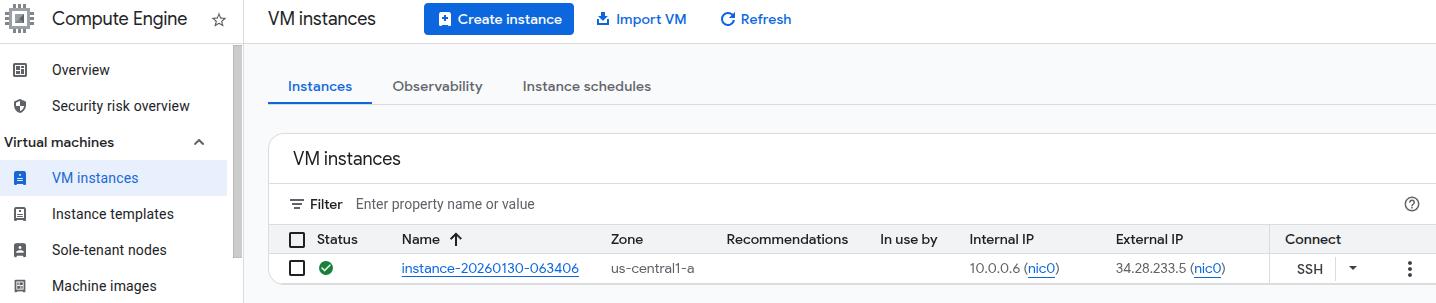
- Click on the affected VM instance name to open the instance details page.
-
Click STOP to stop the instance, then click
EDIT.

-
Scroll to the API and identity management section and select
a custom service account instead of the default Compute
Engine service account.
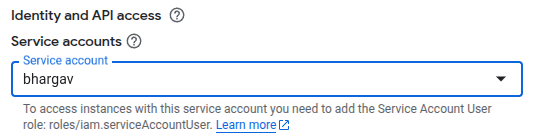
- Click Save, then click START to restart the instance.
Remediation via Google Cloud CLI
-
Open the Google Cloud Console and click the
Cloud Shell icon (
>_) in the top-right corner.
-
Stop the VM instance:
gcloud compute instances stop <INSTANCE_NAME>
-
Update the instance to use a custom service account:
gcloud compute instances set-service-account <INSTANCE_NAME> \
 --service-account=<SERVICE_ACCOUNT>
-
Restart the VM instance:
gcloud compute instances start <INSTANCE_NAME>
Replace <INSTANCE_NAME> with the VM instance name and
<SERVICE_ACCOUNT> with the custom service account email.
Default Value
By default, Compute Engine VM instances are configured to use the default Compute Engine service account.