Other Articles
- Cloud SQL – Configure Private IP
- Cloud SQL – Monitor CPU Utilization
- Cloud SQL – Enable Deletion Protection
- Cloud SQL – Enable Automated Backups
- Cloud SQL – Enable Log Export
- Cloud SQL – Enforce Password Validation
- Cloud SQL – Protect From Internet Access
- Cloud SQL – Enforce Secure Transport
- Compute Engine – Block Project-Wide SSH Keys
- Compute Engine – Disable IP Forwarding
- Compute Engine – Disable Public IP Addresses
- Compute Engine – Disable Serial Port Access
- Compute Engine – Enable Confidential Computing
- Compute Engine – Enable OS Login
- Compute Engine – Enable Shielded VM
- Compute Engine – Restrict Default Service Account
- General – Deny Public Access to KMS Keys
- General – Enforce Duties Separation
- General – Enforce KMS Key Rotation
- General – Restrict Admin Roles on Service Accounts
- Cloud Run – Configure Timeout Settings
- Cloud Storage – Enable Bucket Encryption
- Cloud Storage – Enable Bucket Logging
- Cloud Storage – Enable Bucket Versioning
- Cloud Storage – Enforce Uniform Bucket-Level Access
- Cloud Storage – Restrict Public Access
- IAM Users – Enforce GCP-Managed Keys
- IAM Users – Rotate External User-Managed Service Account Keys
Cloud SQL – Enable Disk Encryption
This check ensures that disk encryption is enabled for Cloud SQL instances. Disk encryption protects sensitive data at rest from unauthorized access, even if the underlying storage is compromised.
Check Details
- Resource: Cloud SQL
- Check: Configure disk encryption
- Risk: If disk encryption is not enabled, sensitive database data stored on disks may be exposed in case of unauthorized access, data theft, or compliance violations.
Remediation via Google Cloud Console
-
Log in to the Google Cloud Console and navigate to
Cloud SQL.
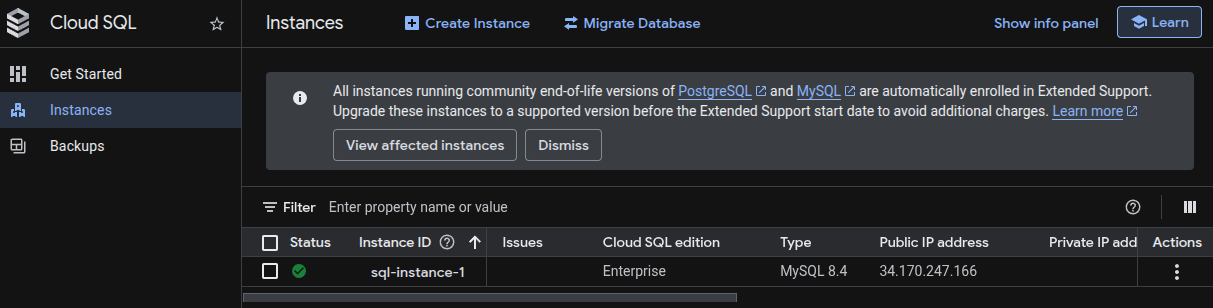
- Click on the affected Cloud SQL instance.
-
Click Edit to modify the instance configuration.

- Scroll to the Data Protection or Encryption section.
-
Ensure Disk encryption is enabled.
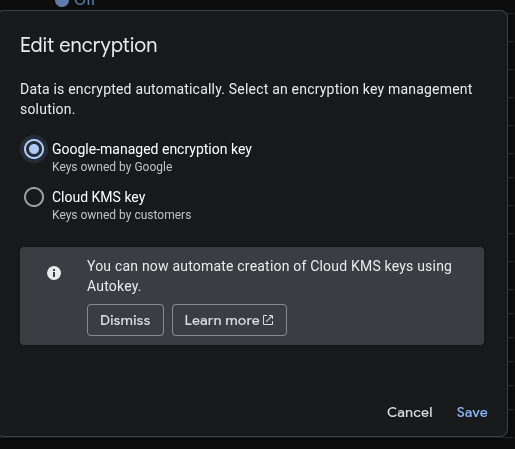
- Click Save to apply the changes.
Remediation via Google Cloud CLI
-
Open the Google Cloud Console and launch
Cloud Shell.

-
Update the Cloud SQL instance to use disk encryption (CMEK example):
gcloud sql instances patch <INSTANCE_NAME> \
--disk-encryption-key <KMS_KEY_RESOURCE_ID>
Replace <INSTANCE_NAME> with your Cloud SQL instance name and
<KMS_KEY_RESOURCE_ID> with the full resource ID of the Cloud KMS
key. Google-managed encryption is enabled by default if no customer-managed key
is specified.
Default Value
By default, Cloud SQL encrypts disks using Google-managed encryption keys. Customer-managed encryption keys (CMEK) are not enabled unless explicitly configured.